Library
The library provides the ability to store essential educational materials, such as textbooks and files, which will be available for an extended period.
Adding a library item
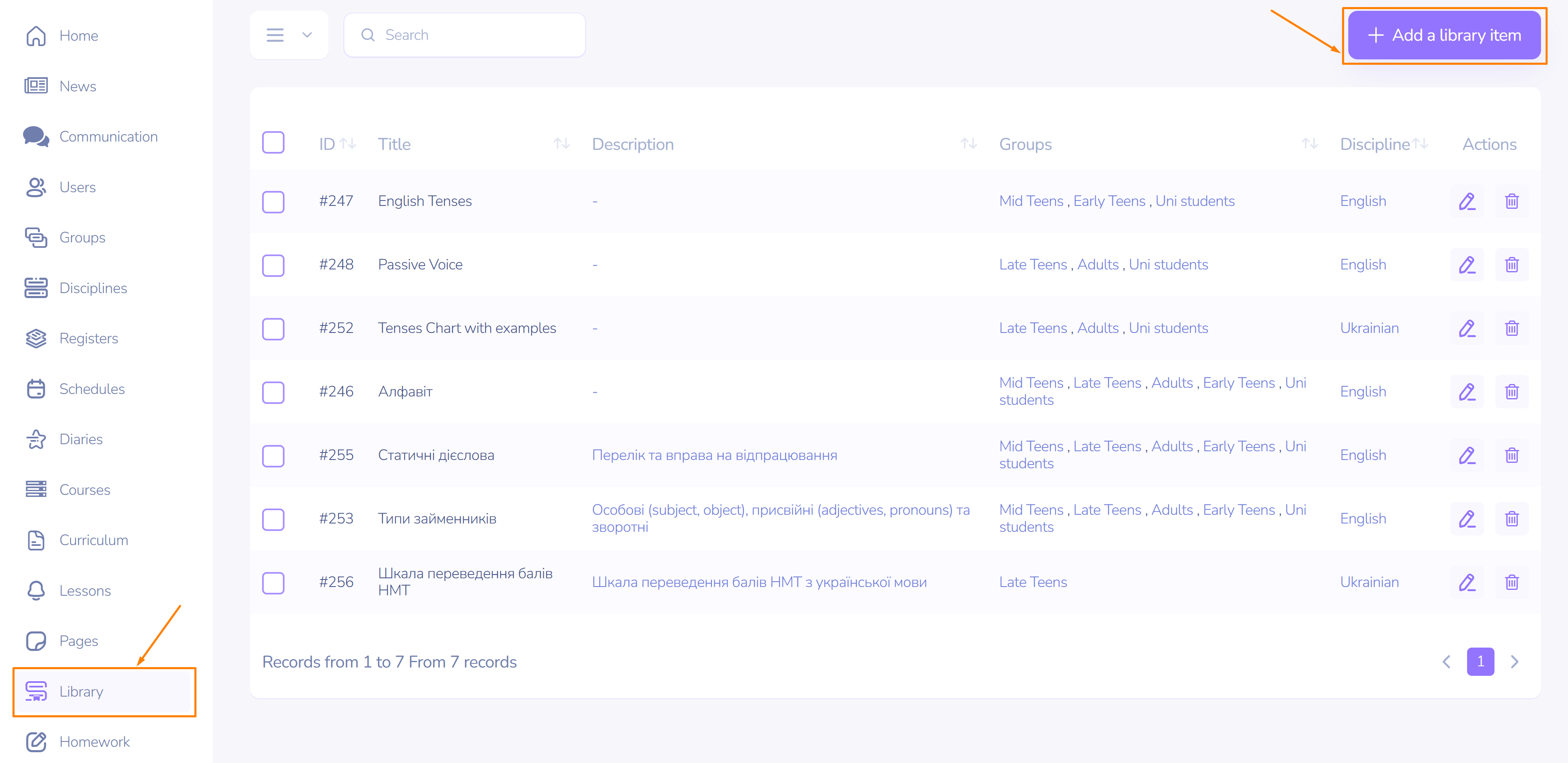
- Select Library from the left menu.
- Click Add Library Item.
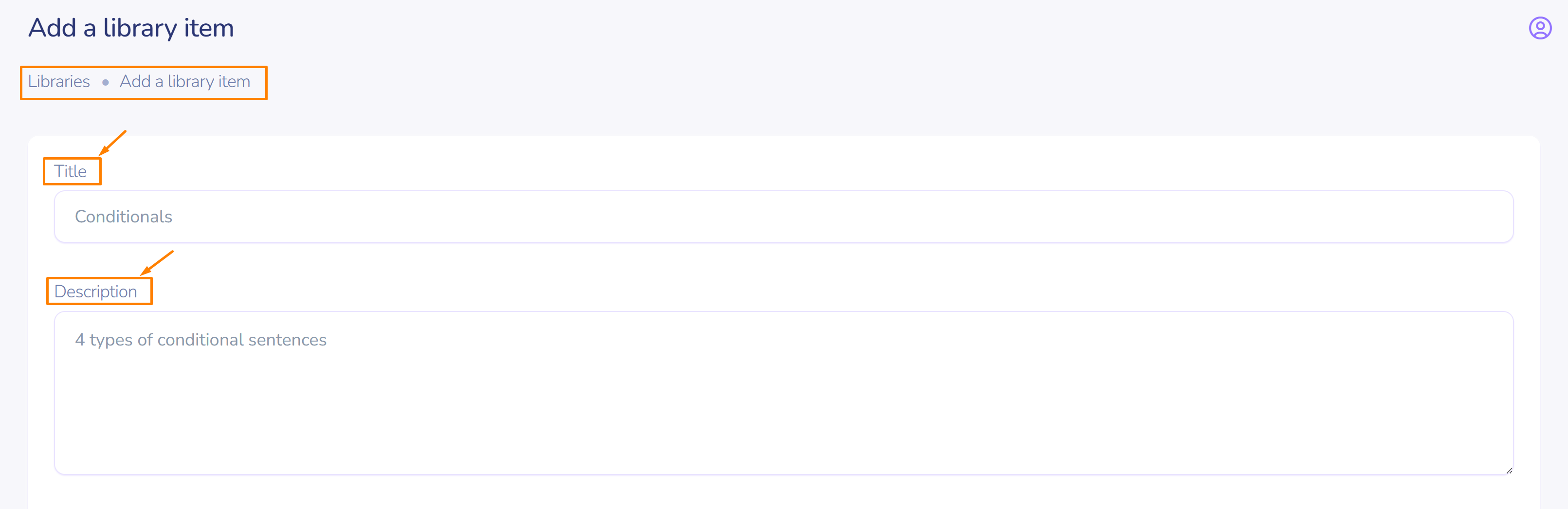
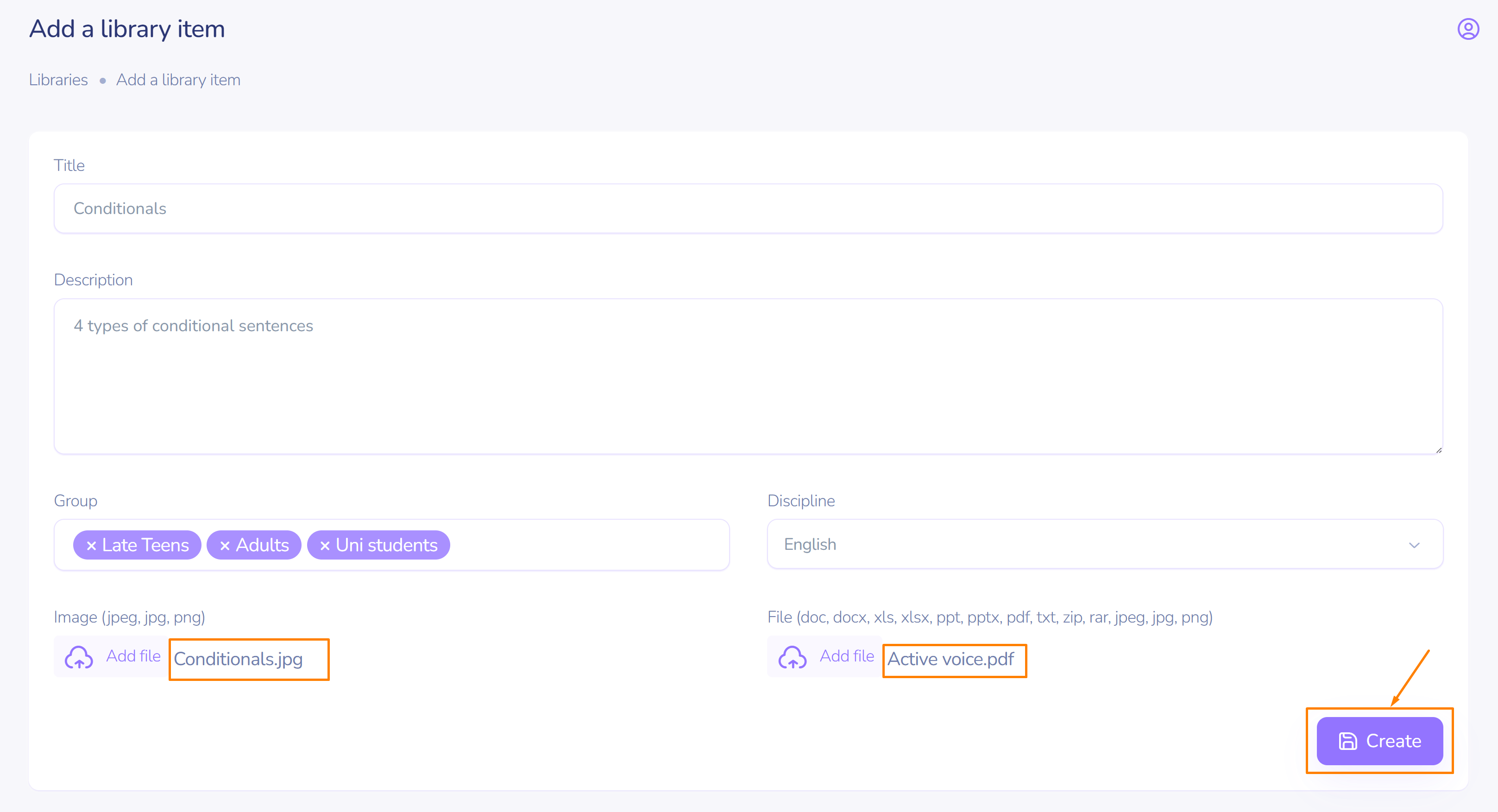
- Enter the title and description.
Group and subject settings
- In the first cell, select the group (multiple selections are possible).
- In the second cell, select the discipline (multiple selections are possible).
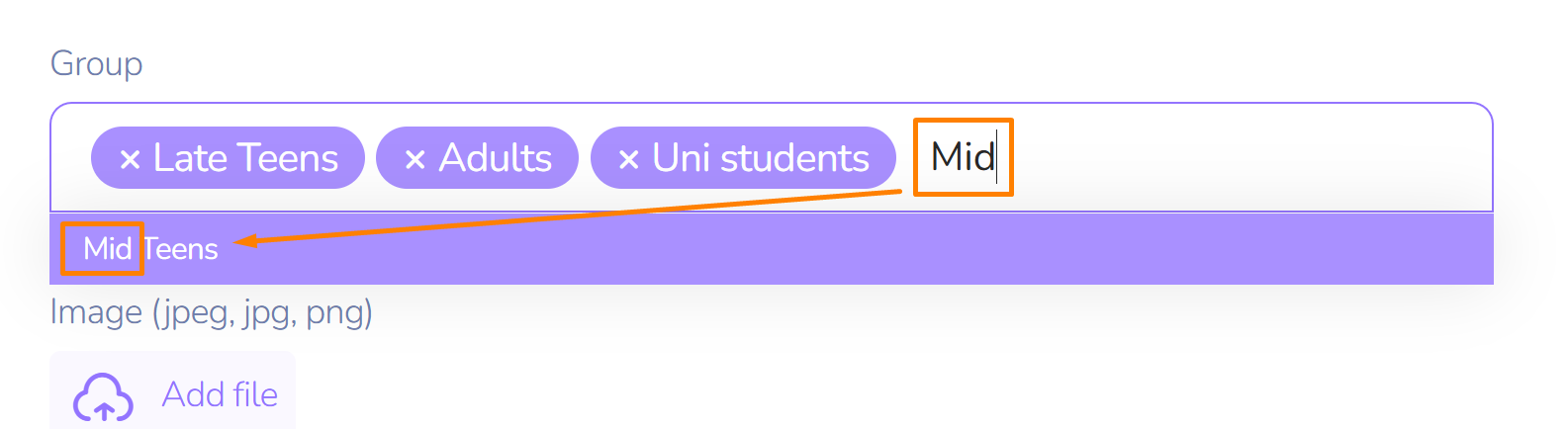
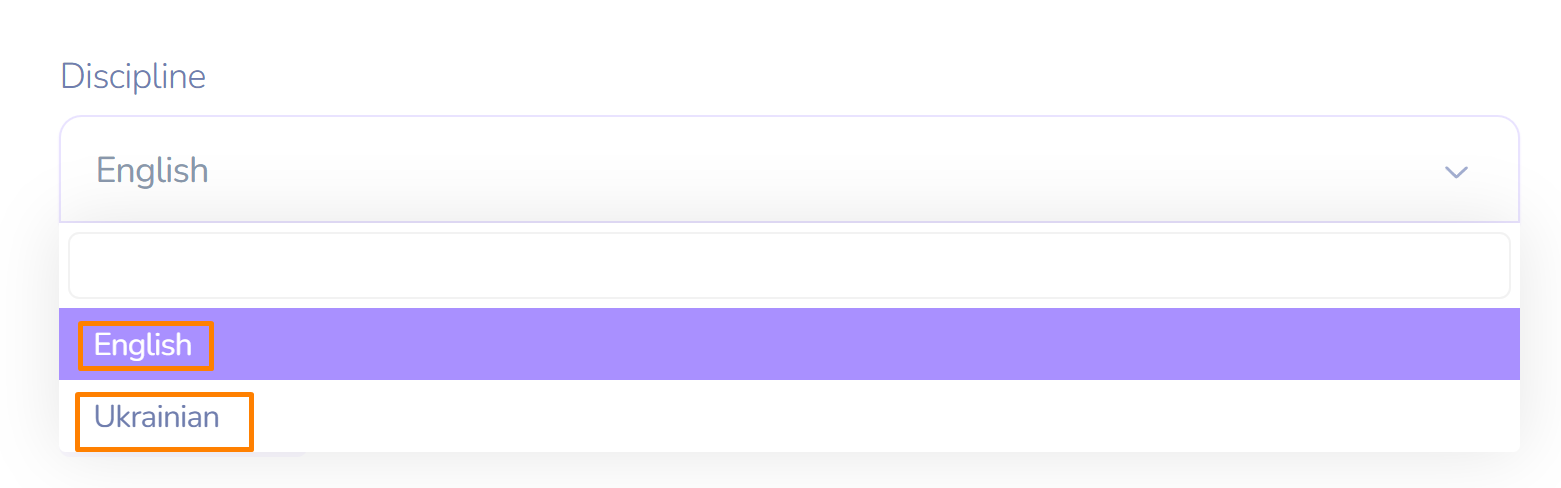
Attention! It is necessary that all groups should be subscribed to study the discipline. You can always change that in main menu side bar by clicking here.
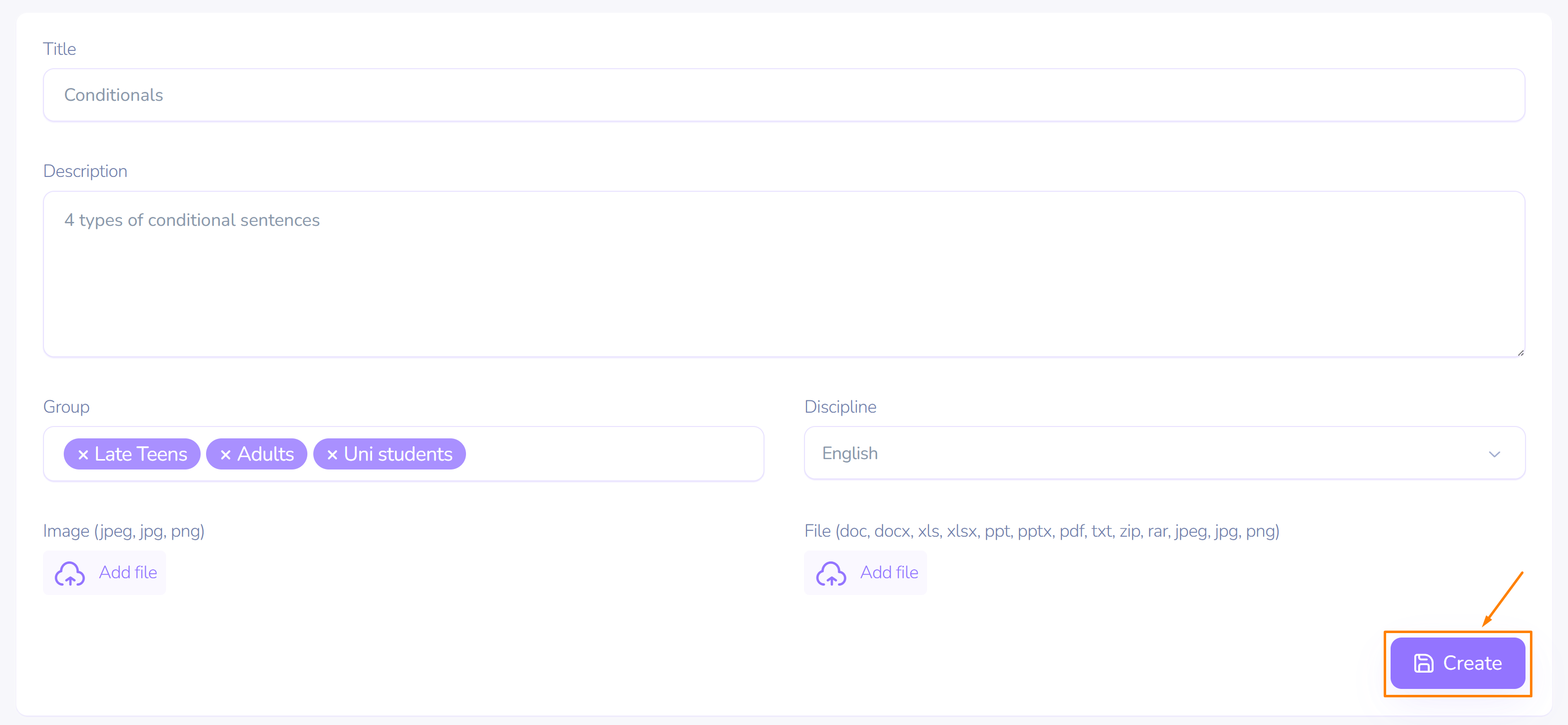
- Click create.
Adding files to a library item.
Покроково:

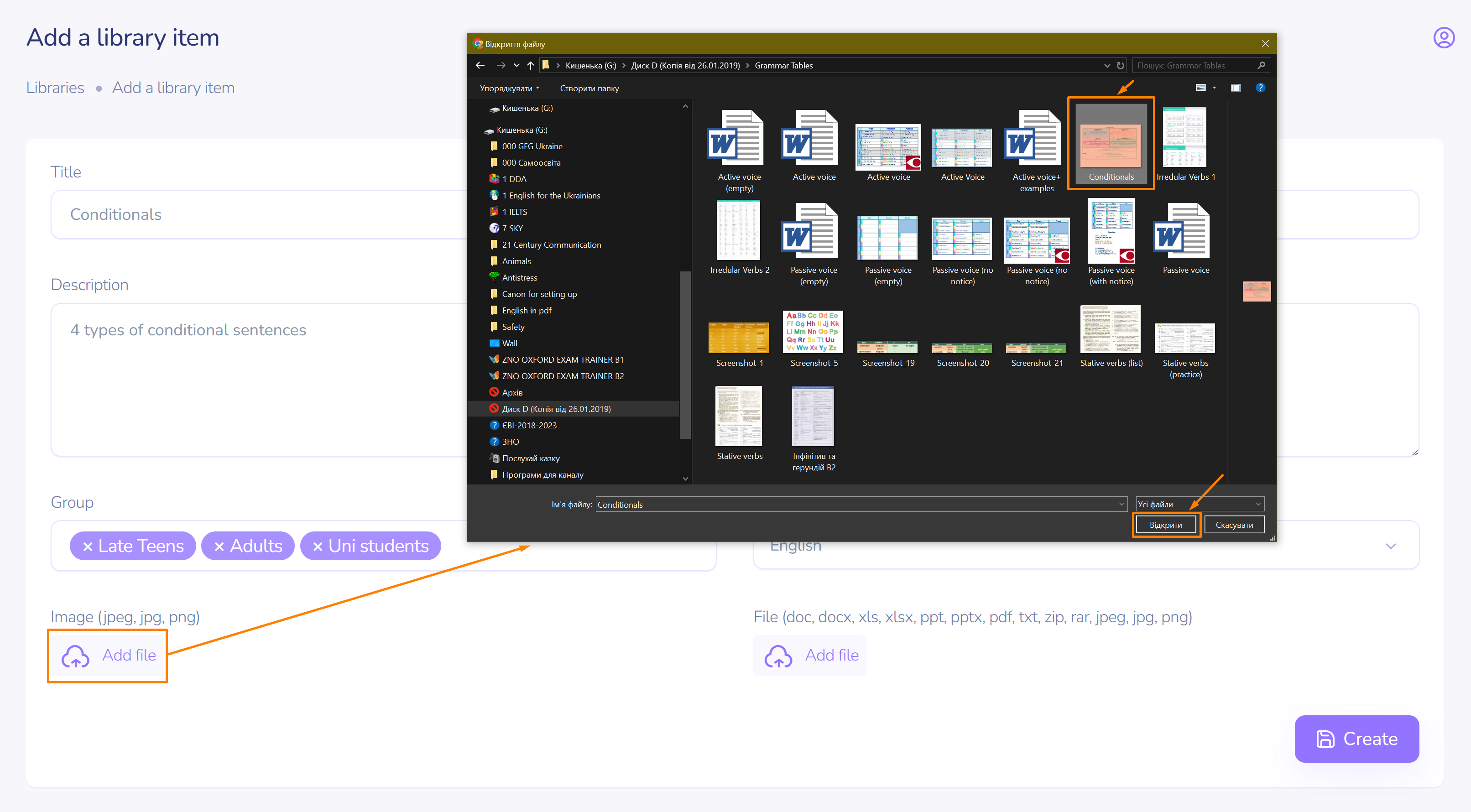
- Click add file.
- Select necessary files (multiple selections are allowed).
- Click open.
- If everything is done correctly, information about added files will appear next to an add file button.
- To save the details, click create.
Editing
If you need to make changes, such as deleting a file or adding another, proceed to editing.
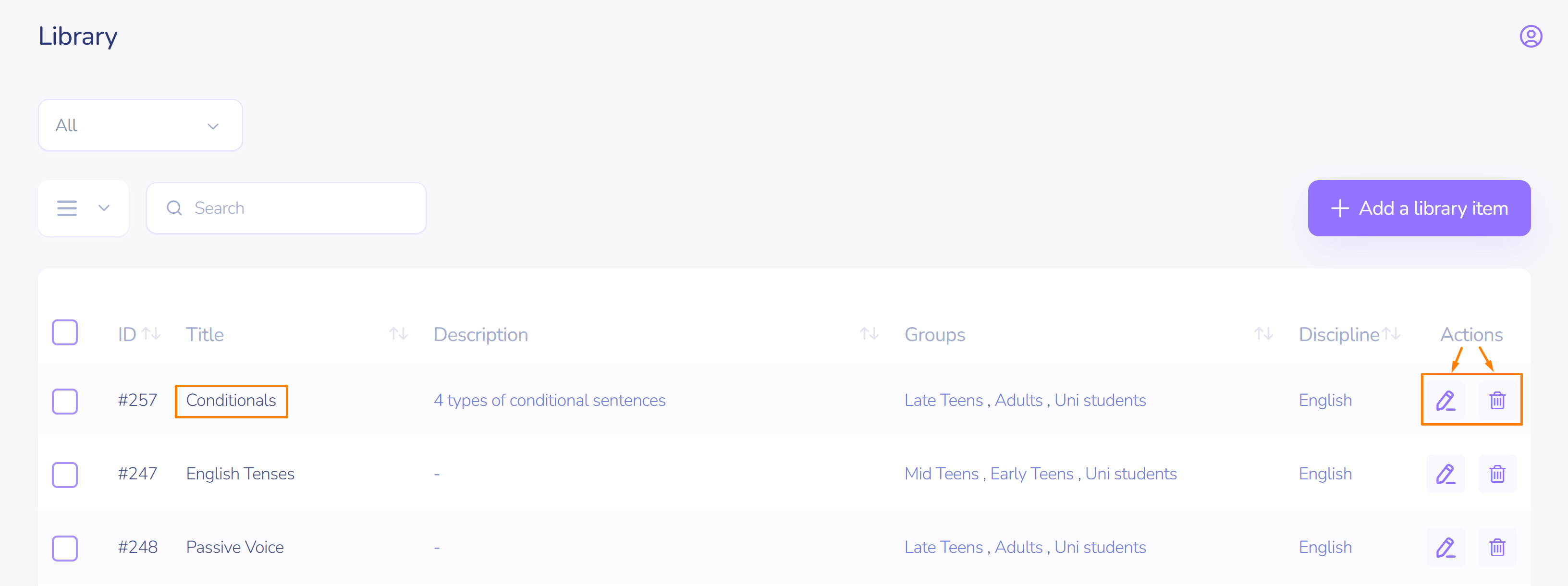
- Find the required library item.
- Click edit.
Adding images to a library item
- Click add file.
- Select the prepared image.
- Click update (if this is the last action in editing).

Attention! The first file must be an image. The second may be of various types.
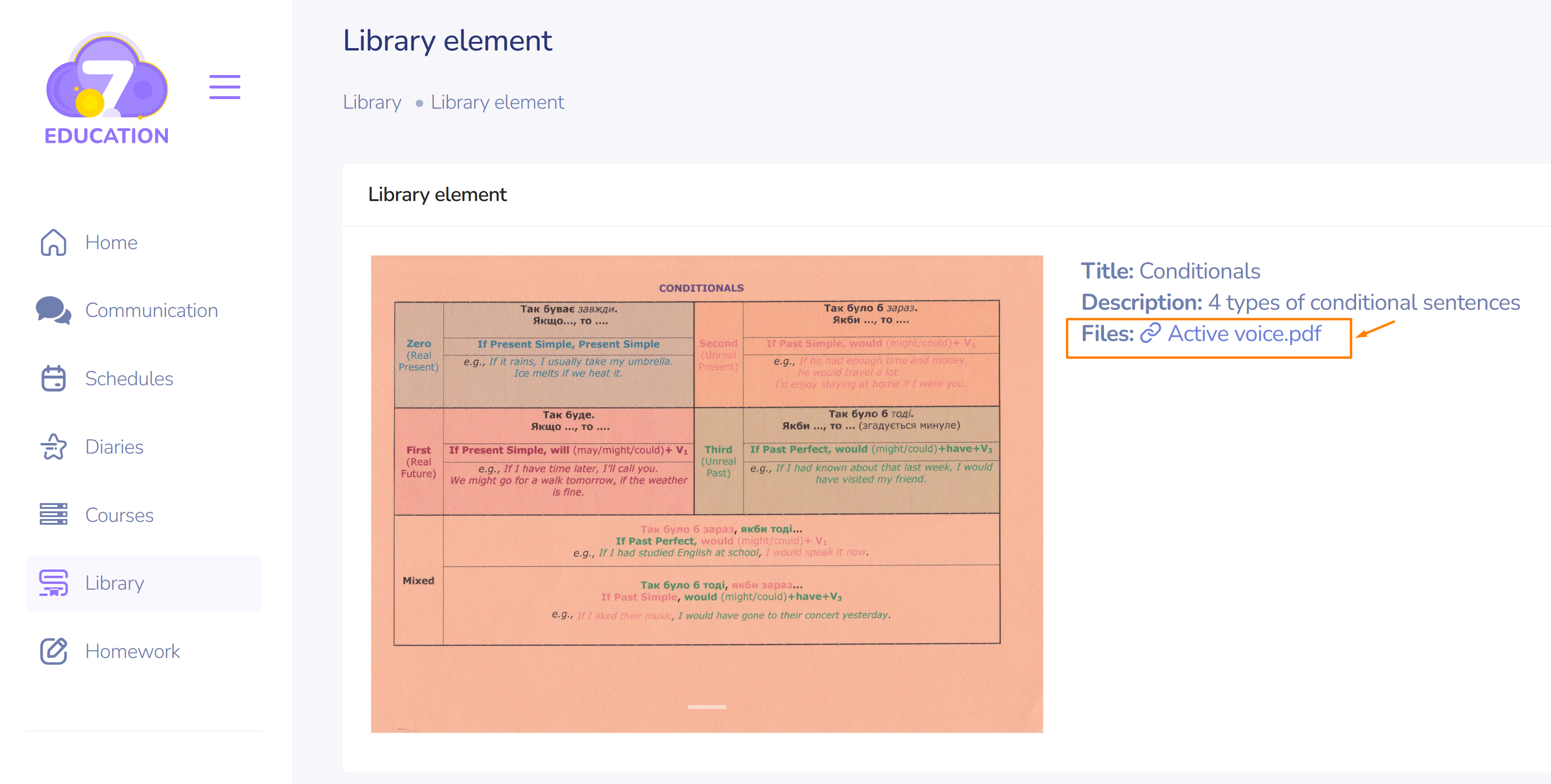
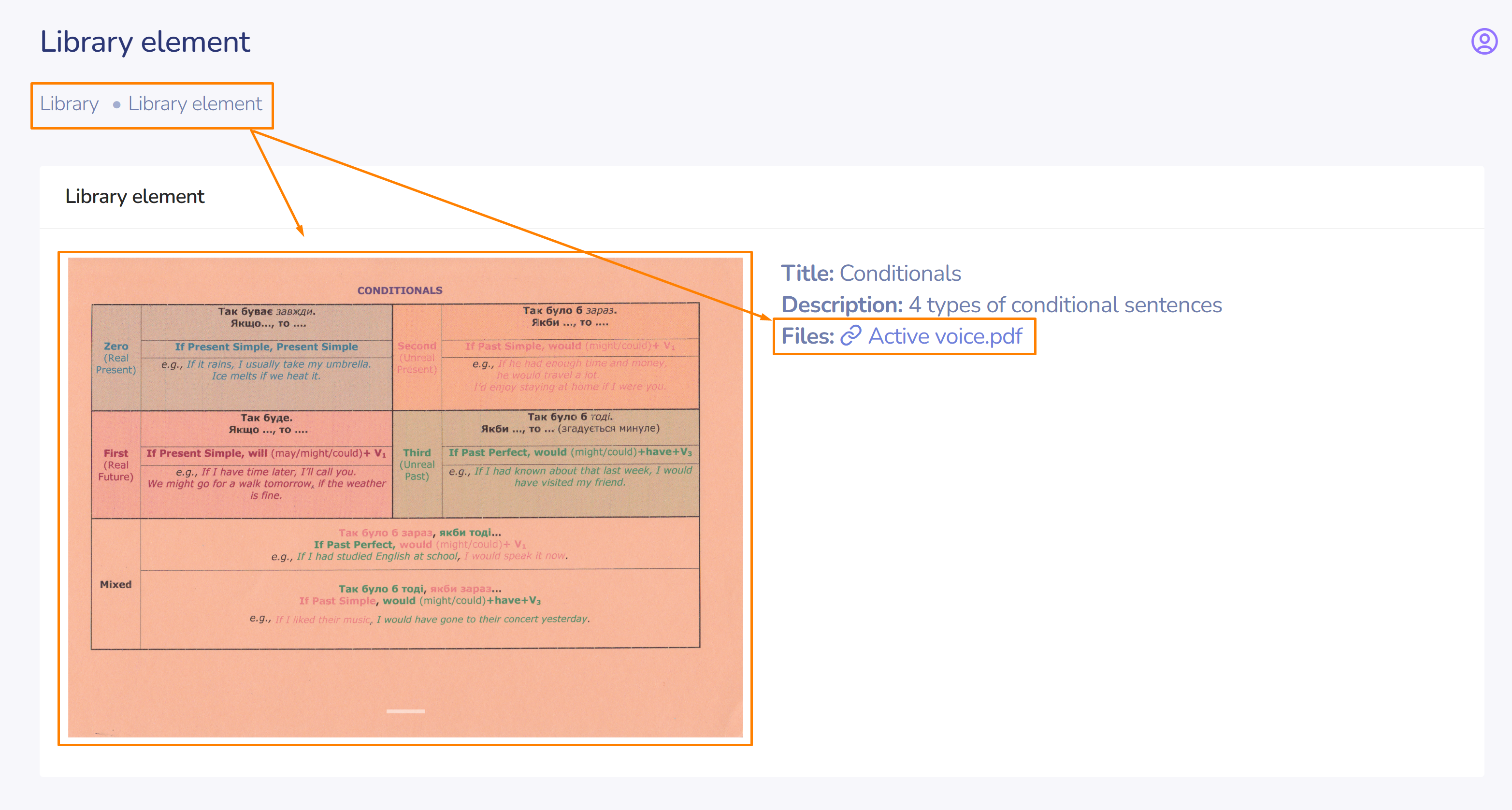
This is how the student's page will look:
Deleting a file from a library item
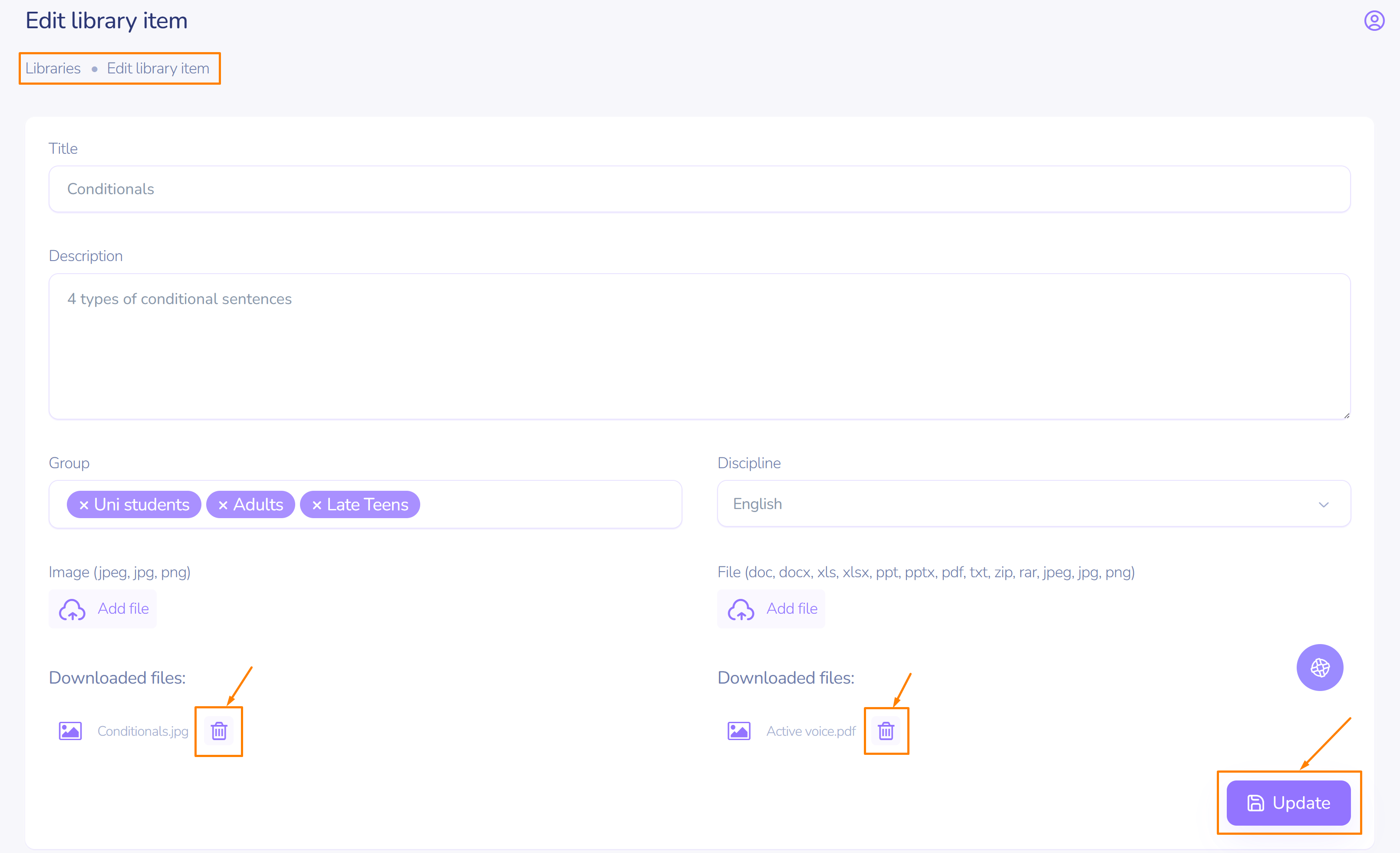
- Select the file you want to delete.
- Click the delete button.
- Click update (if this is the last action in editing).
Viewing library files
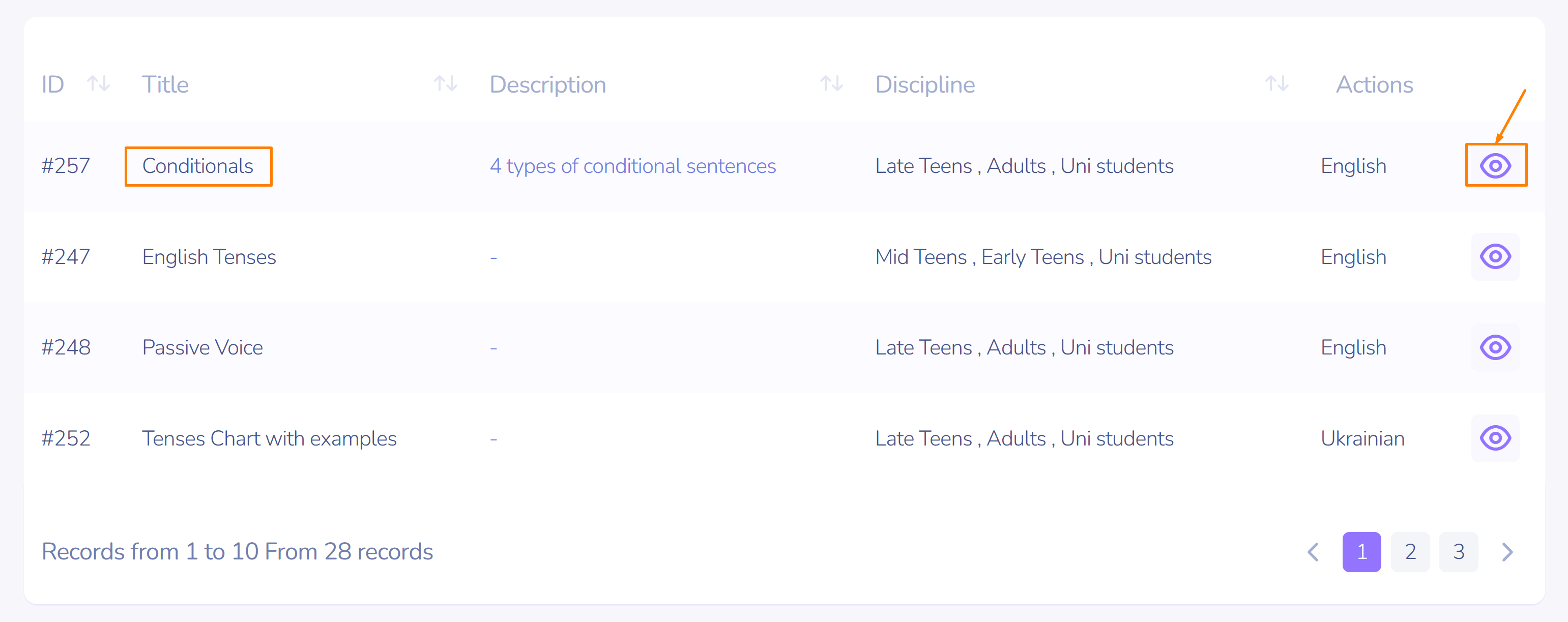
You can view the required library item with the help of view button on the right in the actions section.
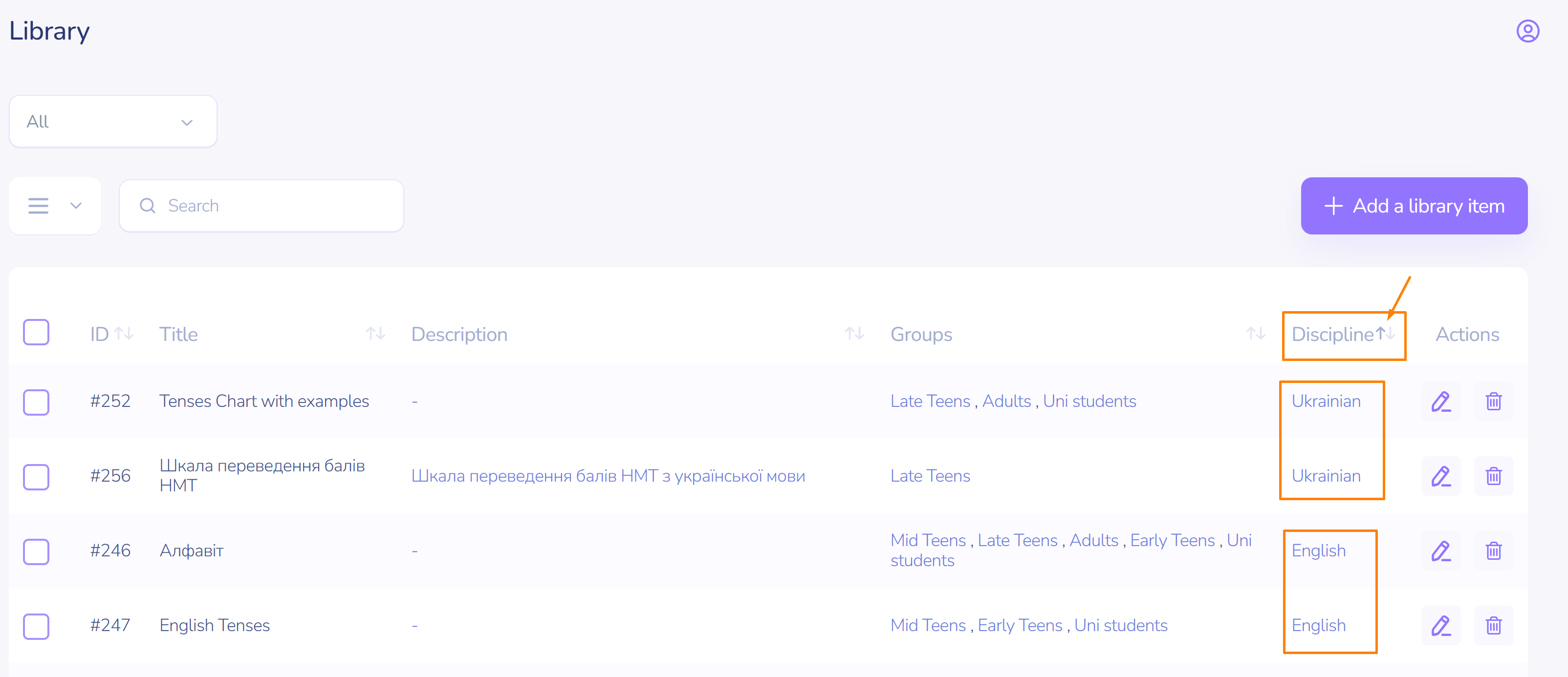
Required materials are easy to be found by the discipline you are studying, as the knowledge base is conveniently organized. Just click on arrows next to discipline column top.
Thanks to a description, you always know what you are downloading.
After clicking the link, the file is immediately downloaded in the background.