
Integration with Zoom
- To integrate with the Zoom platform:
- Go to the page https://marketplace.zoom.us/
- Log in with your Zoom account.
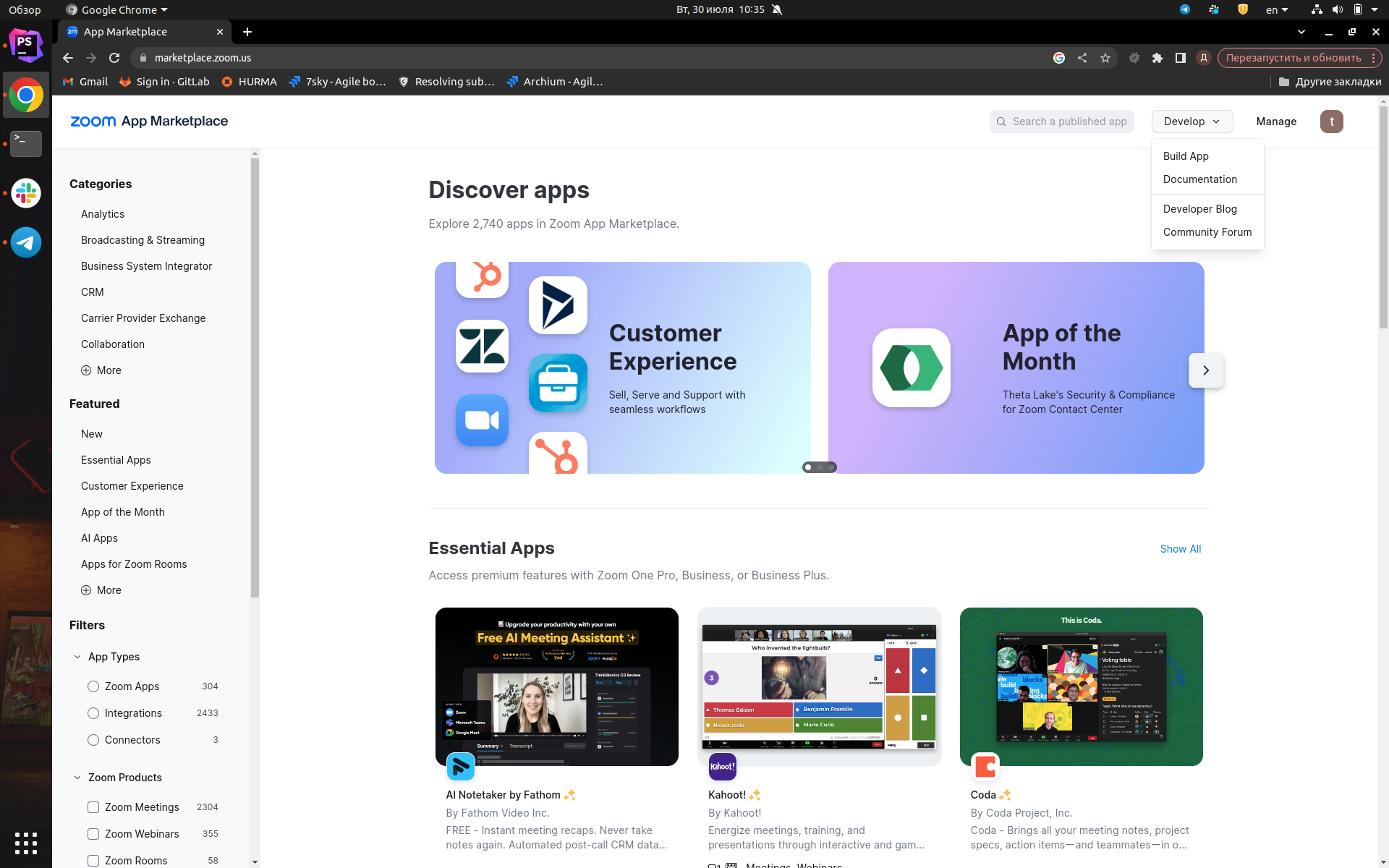
- In the top right corner, click "Develop" and select "Build App."
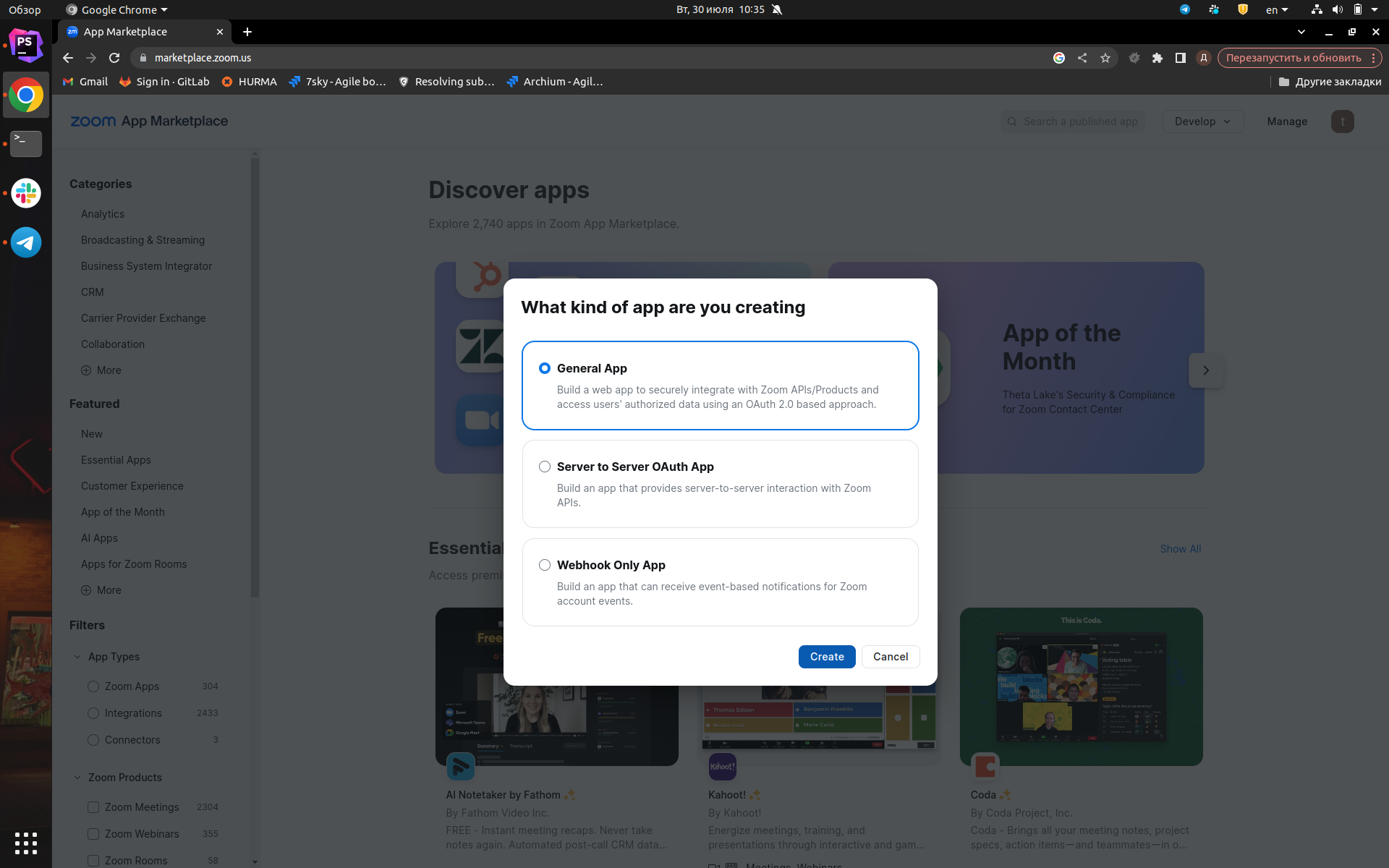
2. In the window that appears, select "General App" and click "Create."
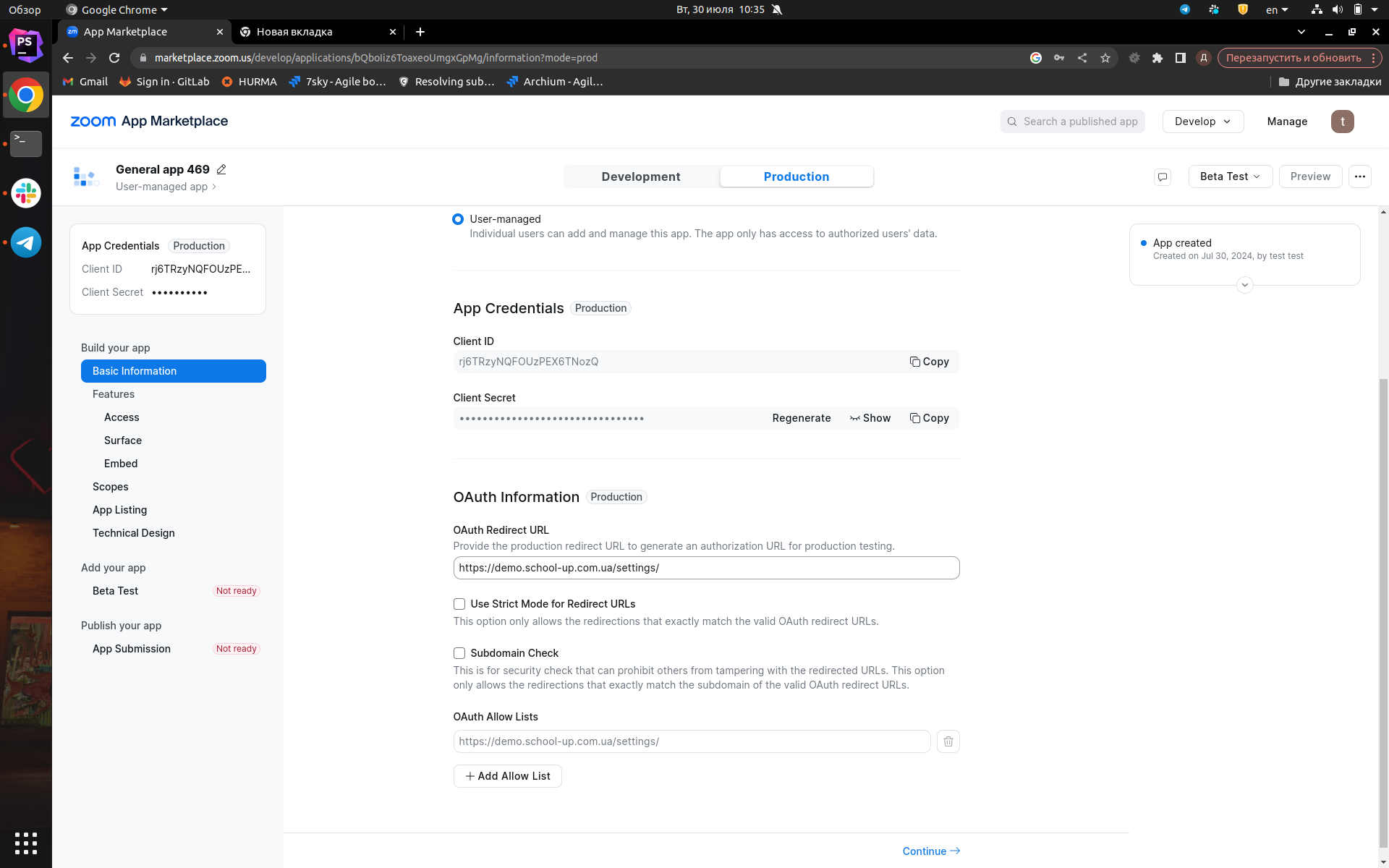
3. After that, the page for your app will open. Select the "Production" tab, scroll down the page, and in the "OAuth Redirect URL" field, enter the following URL: https://7sky.online/settings.
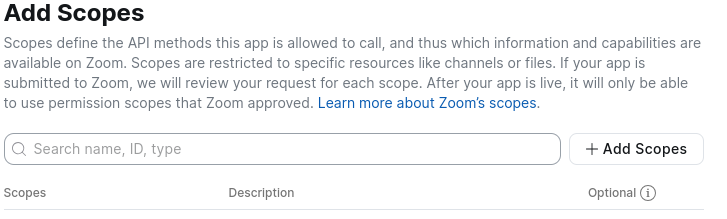
4. In the left sidebar, go to the "Scopes" page and click "Add Scopes."
5. In the pop-up menu
- Add all the permissions for creating meetings.
You can find them by searching for meeting:write. - Remove all permissions based on this search query, as shown in the image.
There should be 19 permissions in total.
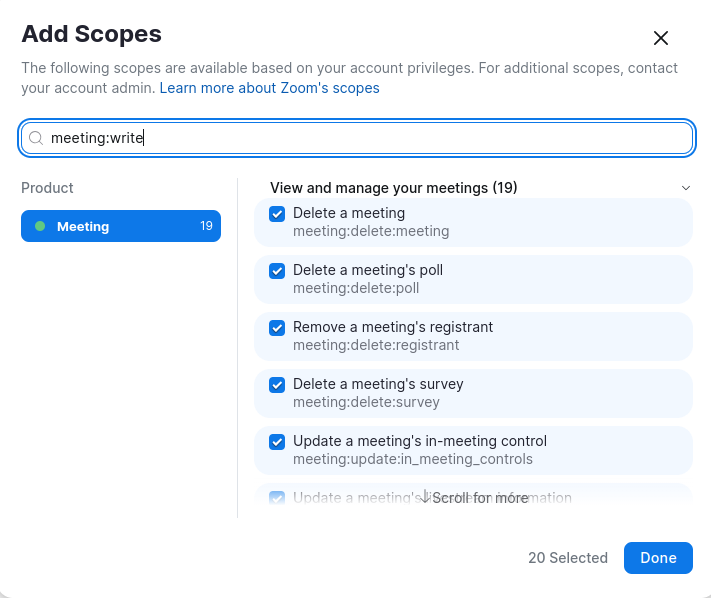
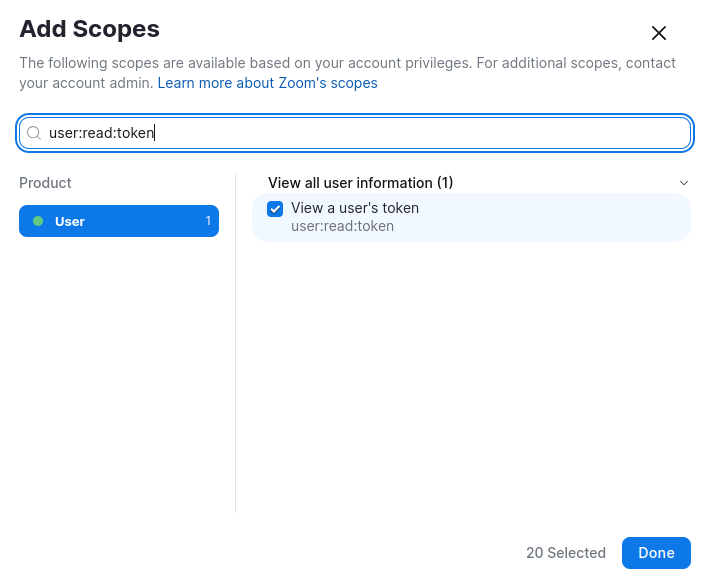
6. Next, search for user:read:token and activate the toggle for this item. This will allow the app to obtain tokens for working with Zoom. The total number of permissions for the app should be 20. To save, click "Done."
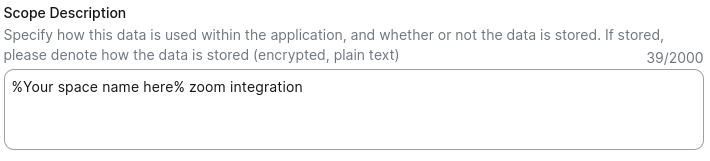
7. At the bottom of the page, add a description for these permissions, namely the name of the space: "Zoom Integration."
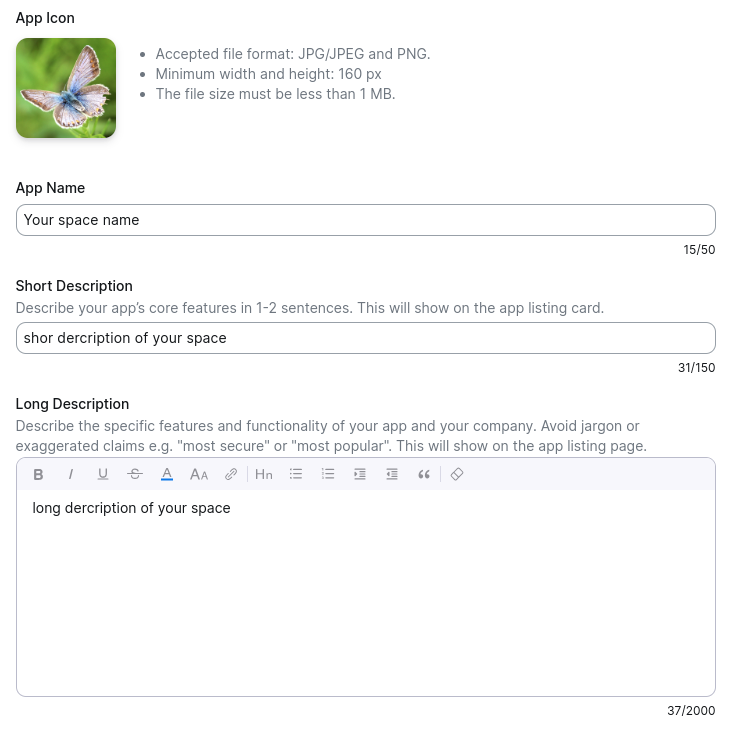
8. In the left sidebar, go to the "App Listing" page and fill in the information about the app, specifically:
- App Icon – the app icon (you can use the formatted logo of the space)
- App Name – the name of the app (you can use the name of the space)
- Short Description – a short description of the space
- Long Description – a detailed description of the space
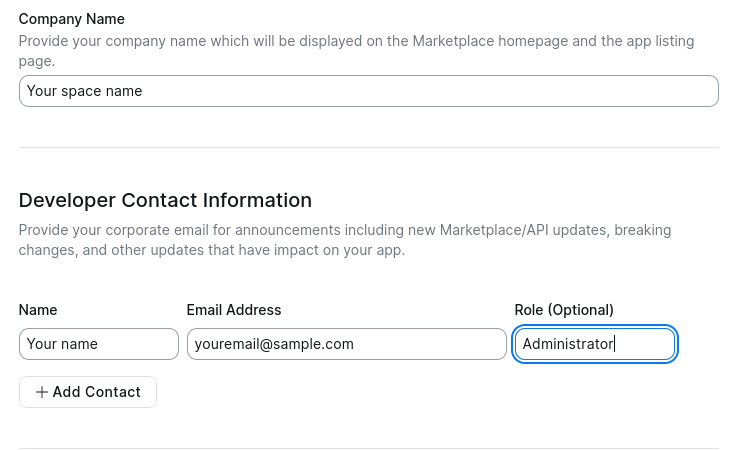
- Company Name – the name of the space
- Developer Contact Information
- Name – your name
- Email Address – your email address
- Role (Optional) – role field, optional, you can specify your role in the space (Administrator)
Example of the filled-in information
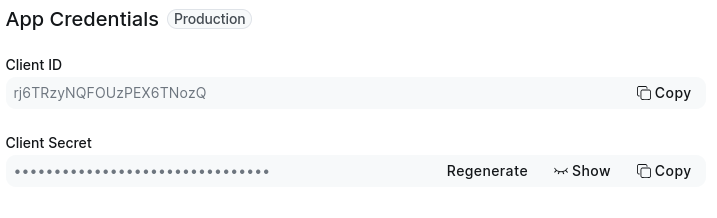
9. Go to the settings page of your space and fill in the fields for the permissions to our app, specifically the Client ID and Client Secret, which you can get from the control panel of our app, then click "Authorize."
10. You will be automatically redirected to the app access permission page.
- Activate the toggle next to "Allow this app to use my shared access permissions" and click "Allow."
- You will be automatically returned to the space settings page.
- If everything was set up correctly, you will see the following.
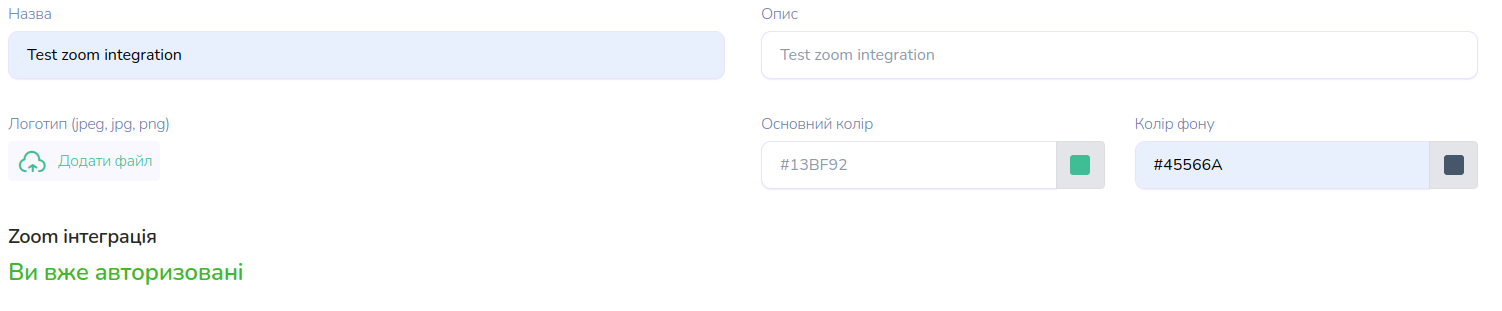
Congratulations! The Zoom app has been integrated and is available in the space.
Things to pay attention to (key aspects)
- The user (admin, teacher, tutor) who activates Zoom for their account in a specific space must go through all the steps in the instructions. The integration process needs to be completed by each user in the school, separately for each space.
- Users (admins, teachers) who created a lesson are the moderators and must be present in the conference to start it.