Big Blue Button
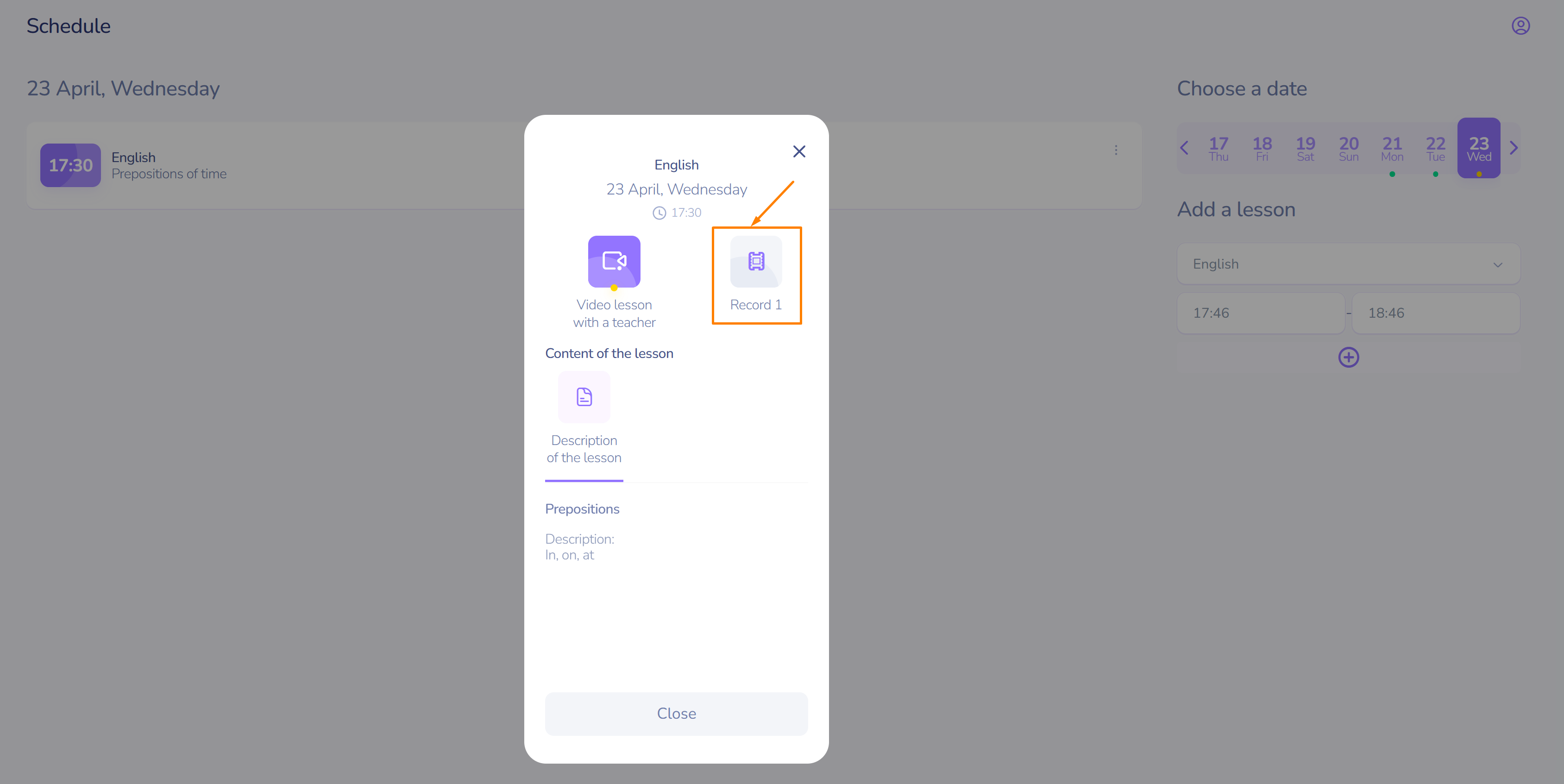
The online meeting system can be a part of the lesson.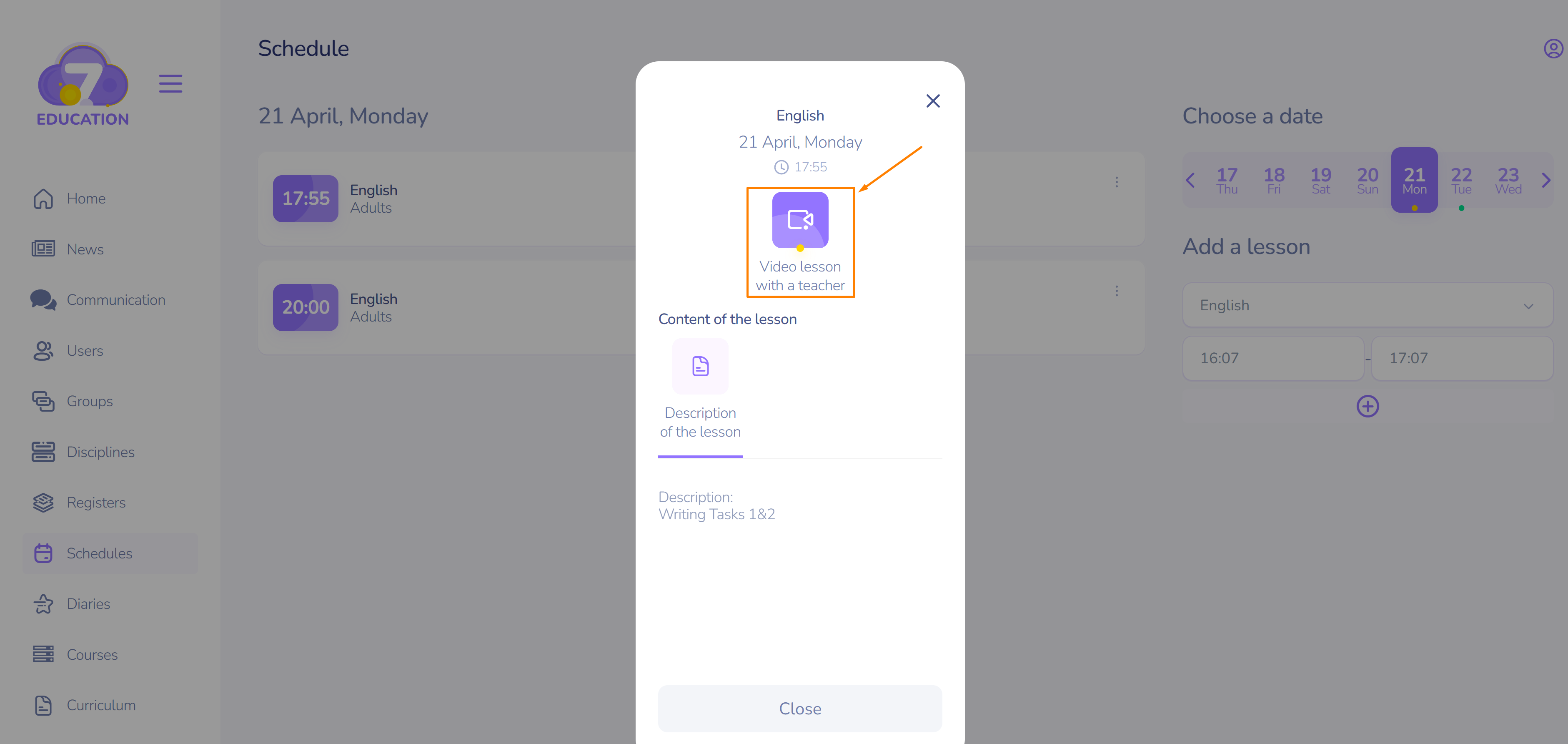
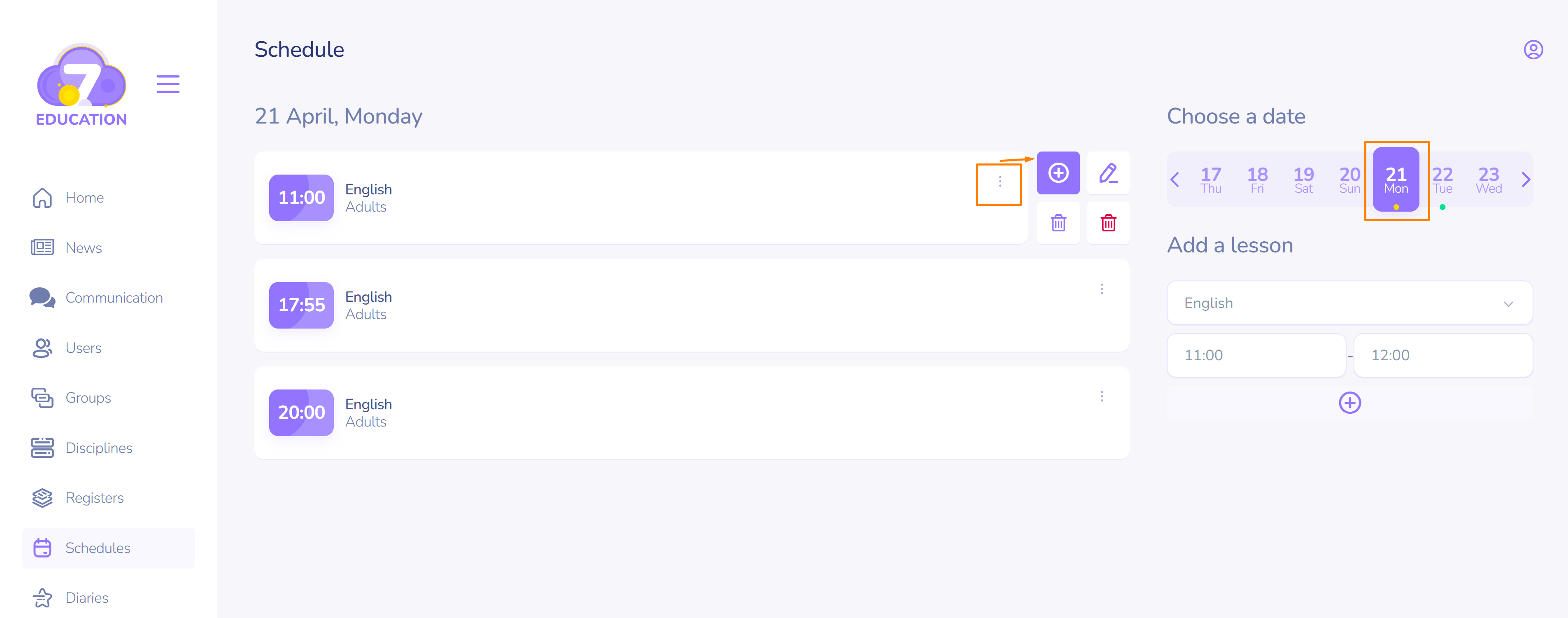
To add this option to any lesson, except those created for a course, you need to activate the corresponding option when creating or editing the lesson in the schedule. The title and description of the video lesson will be automatically copied from the lesson title.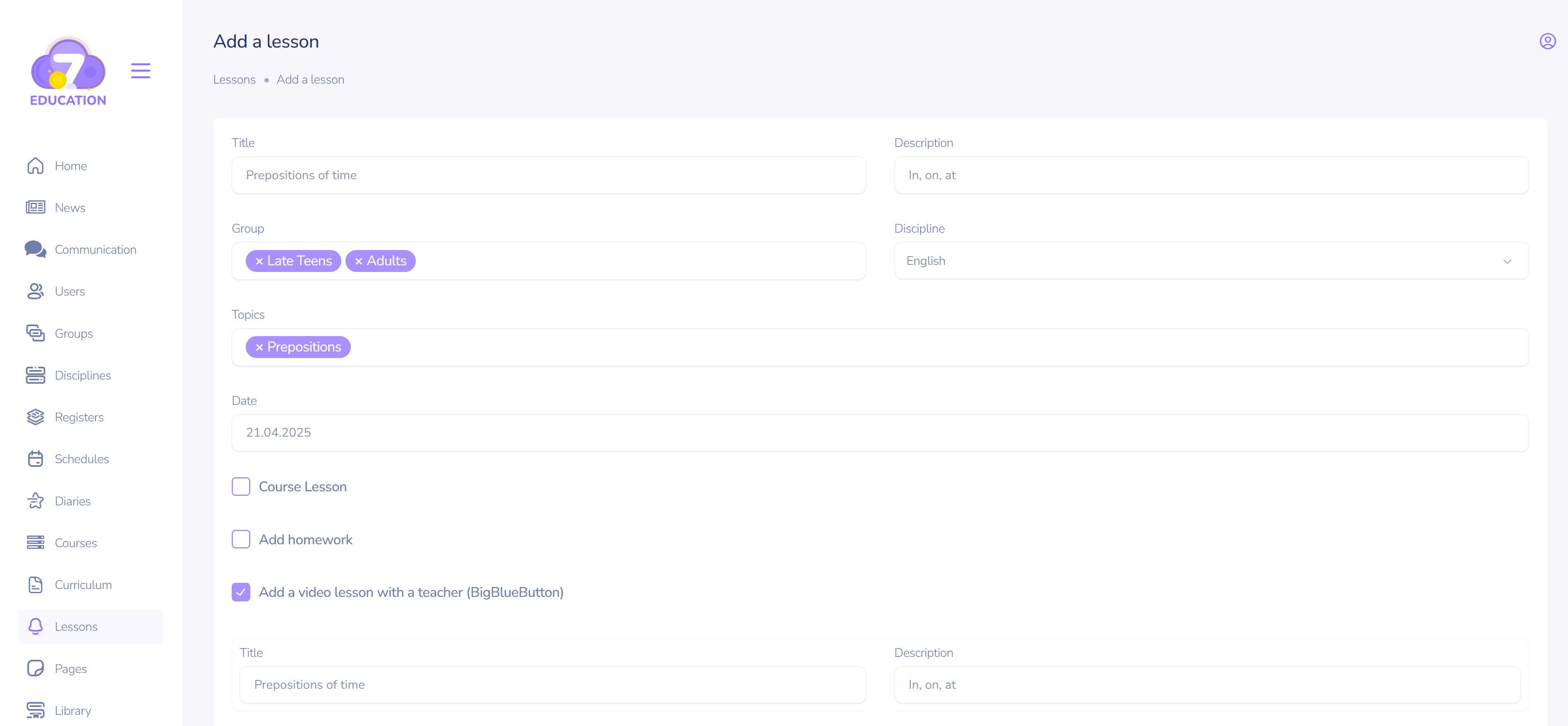
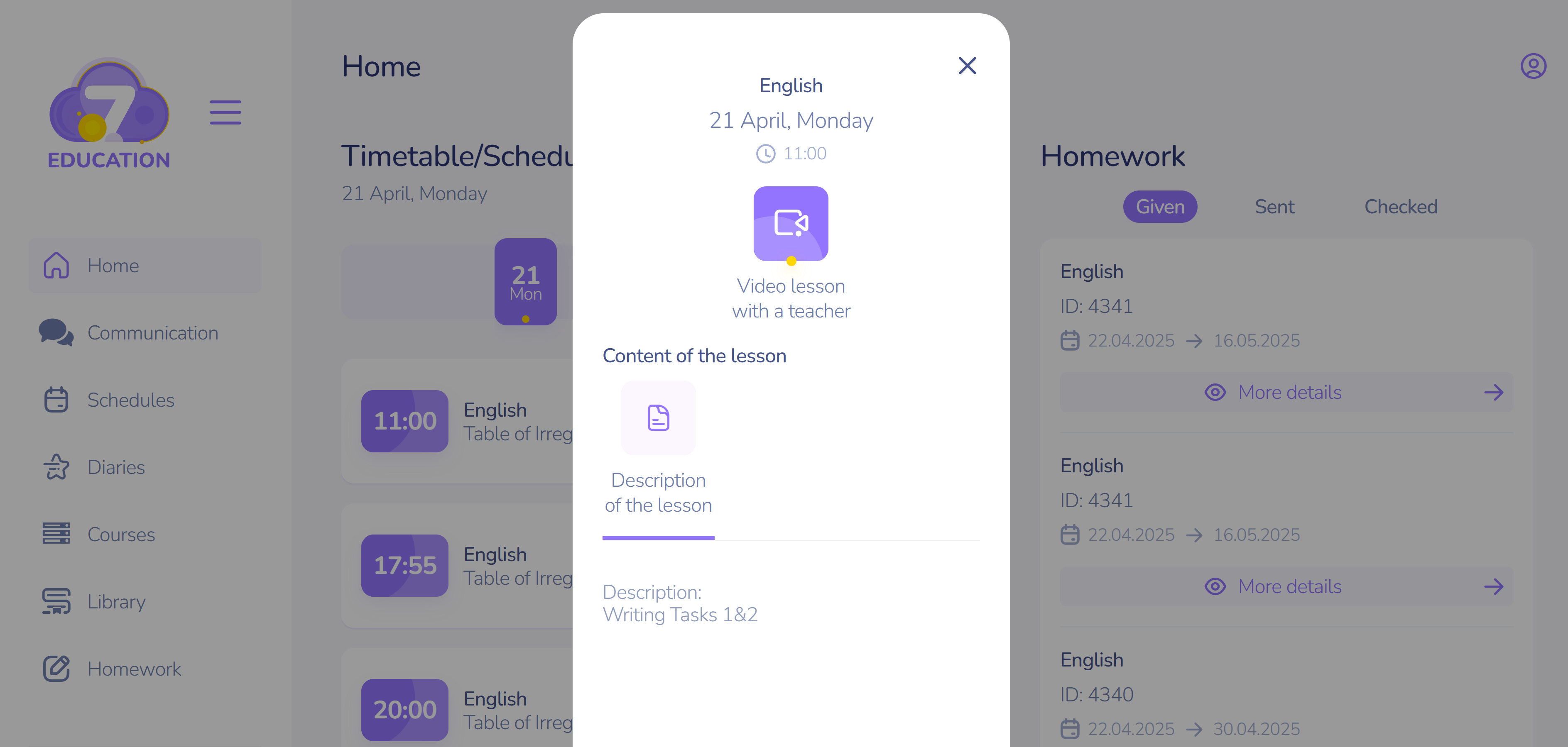
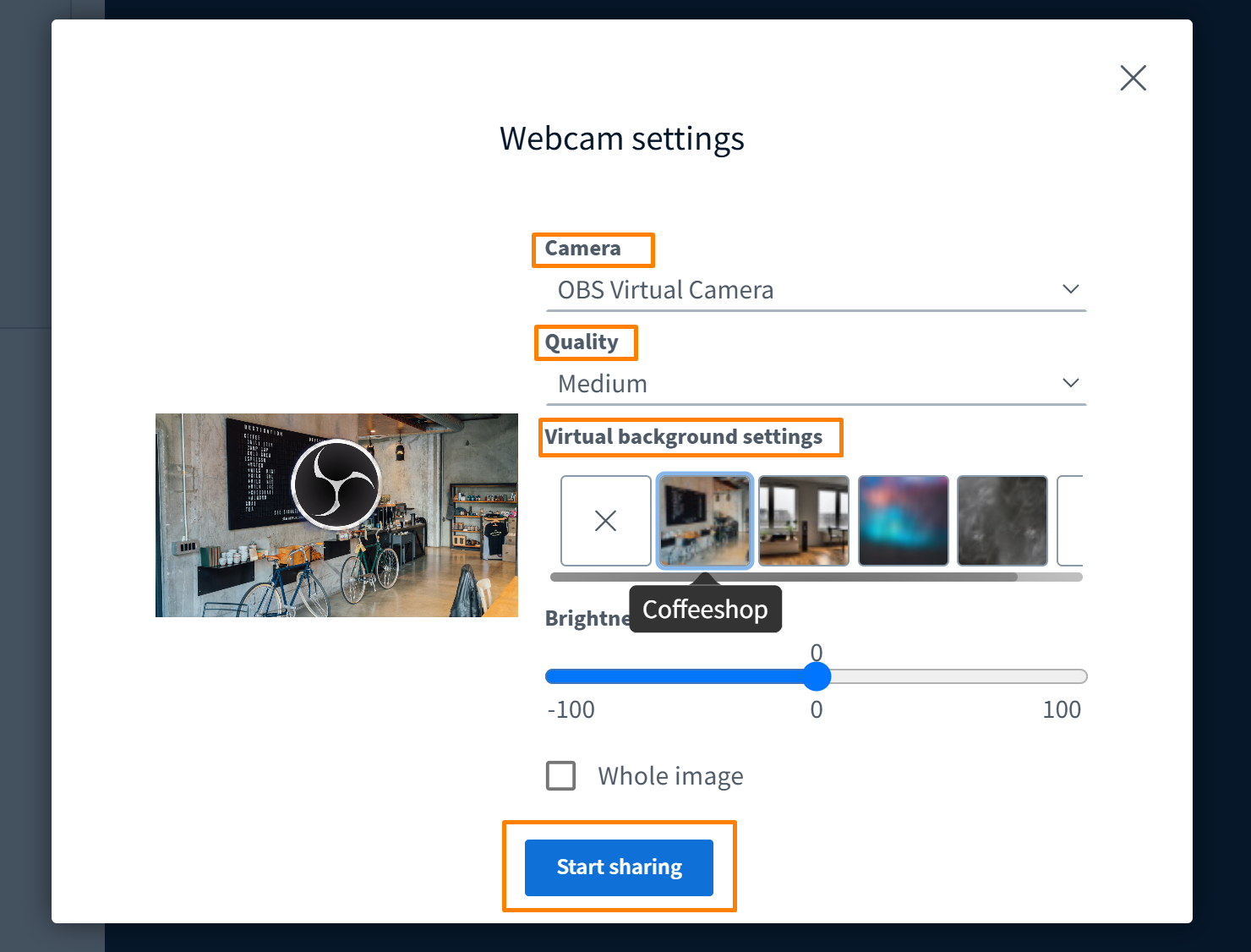
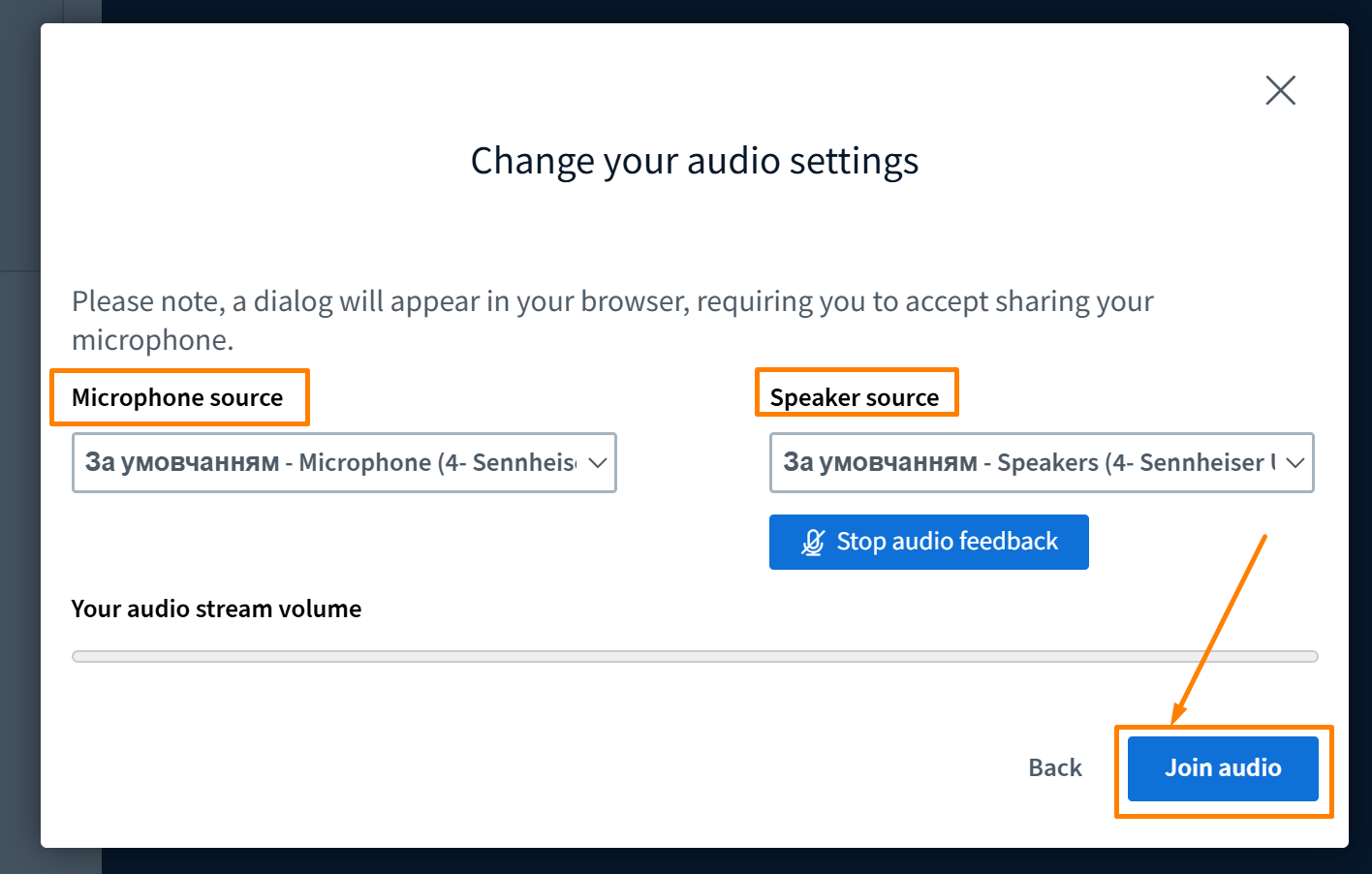
- camera
- microphone
- then offer to join.
After clicking on this element, the user is redirected to the video conference.
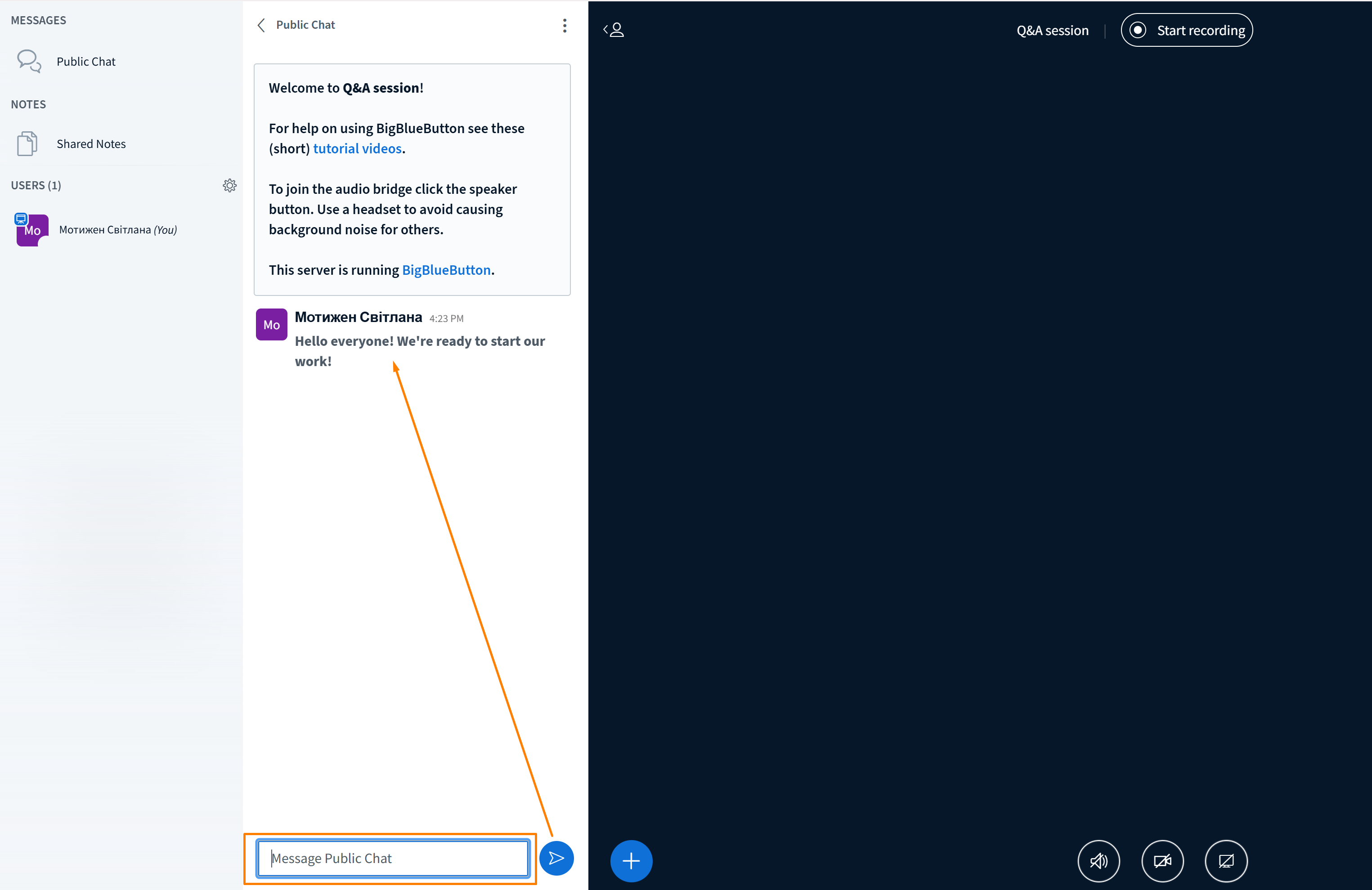
A public chat is available to the conference organizer.
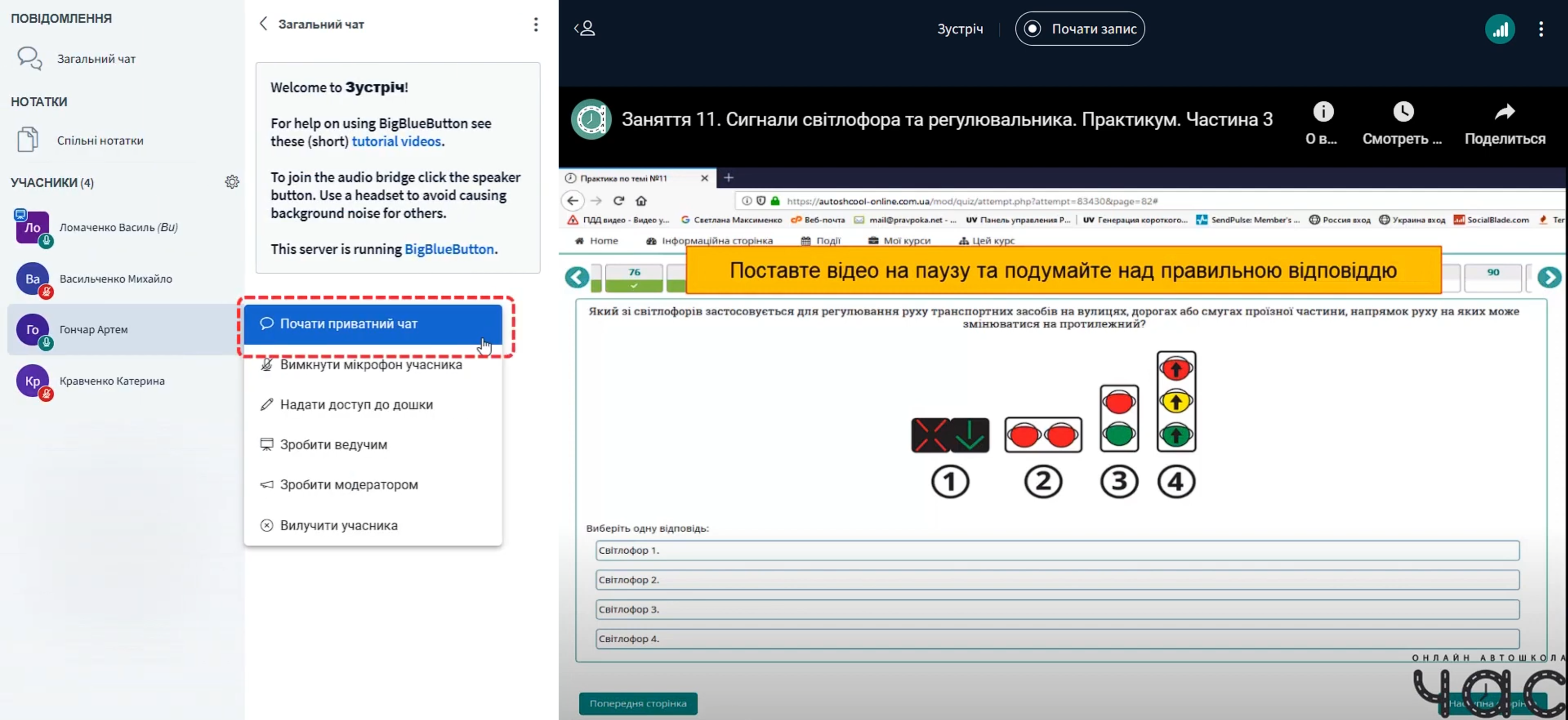
There is also the possibility to communicate via text with individual participants of the meeting.
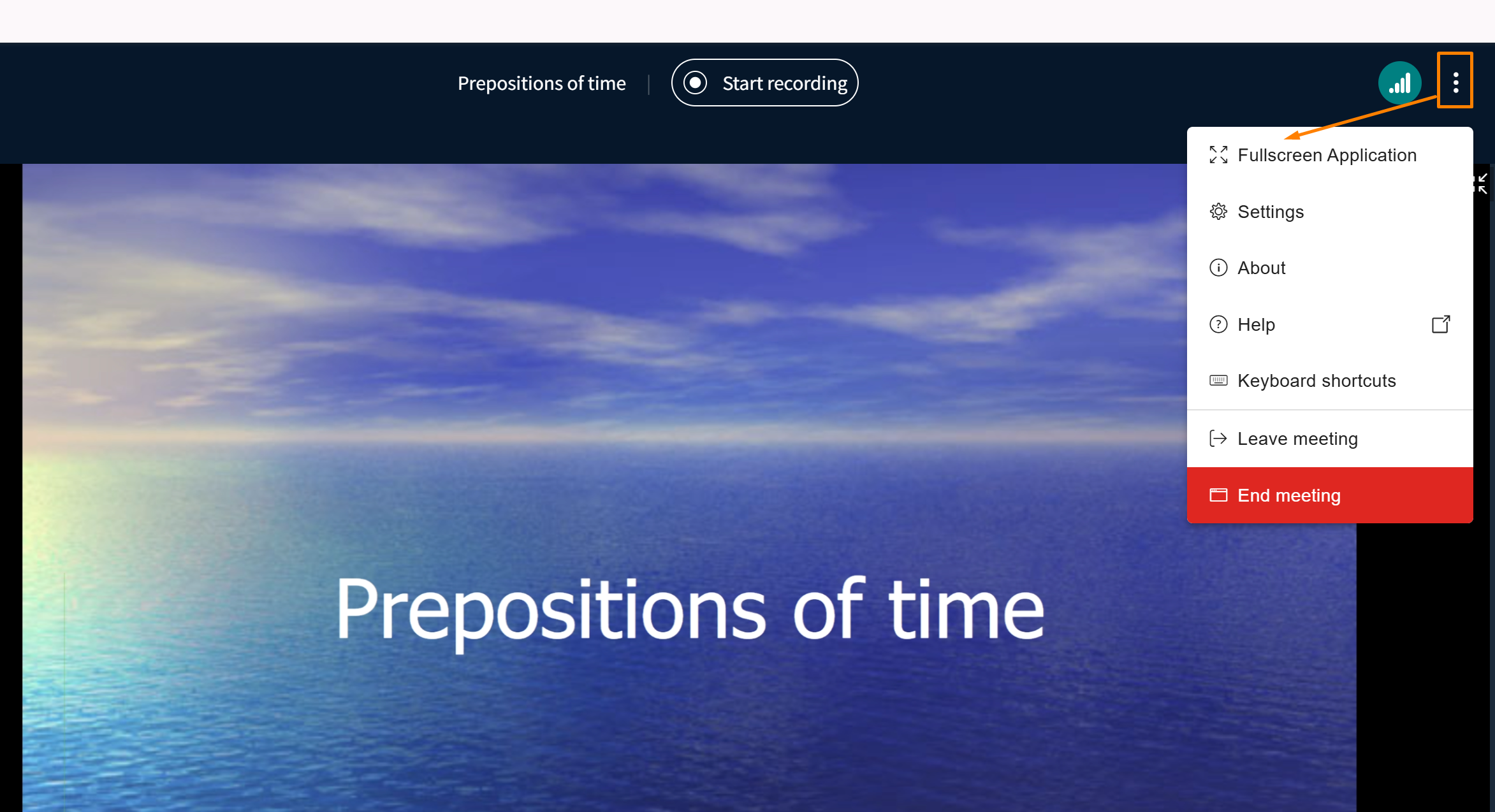
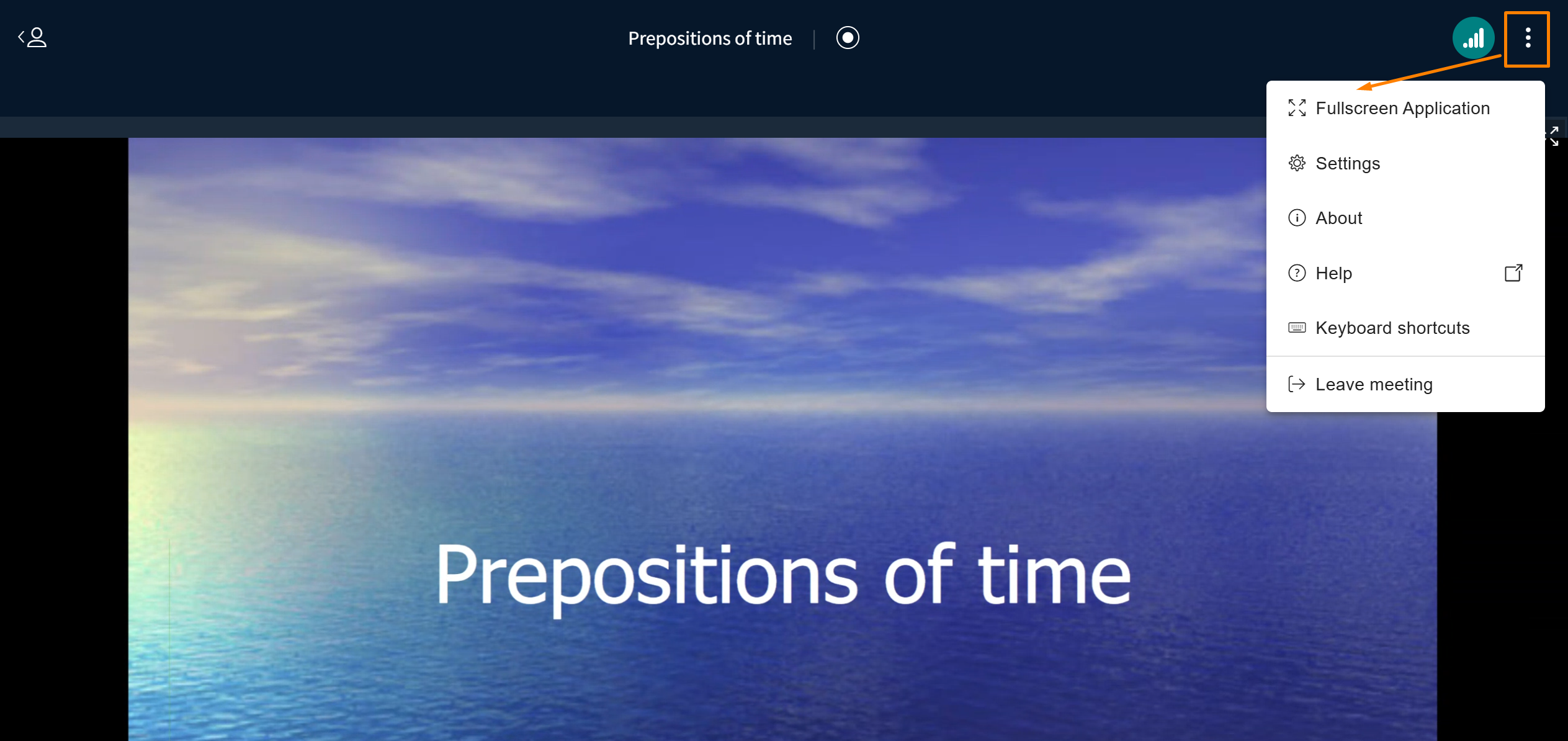
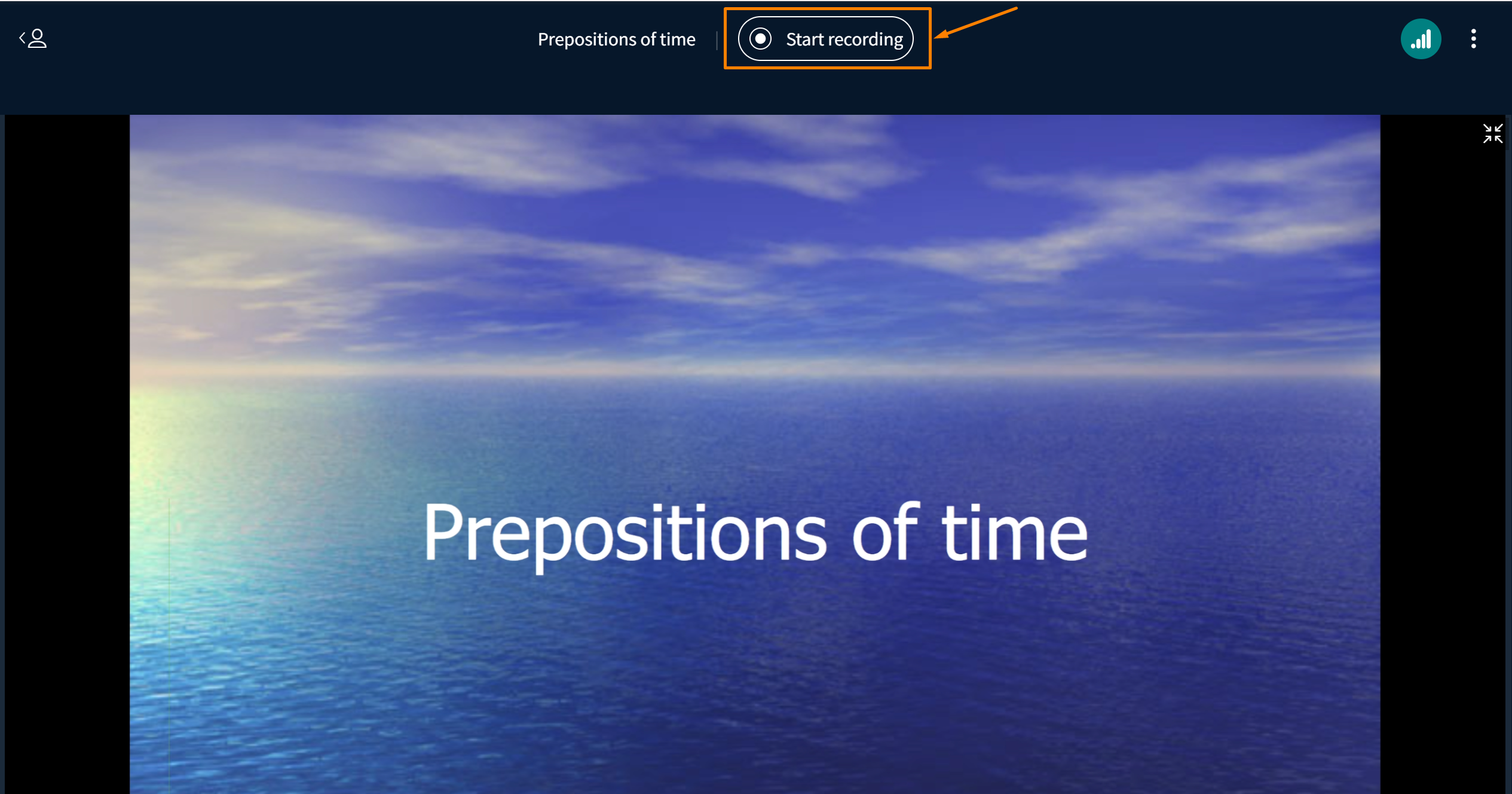
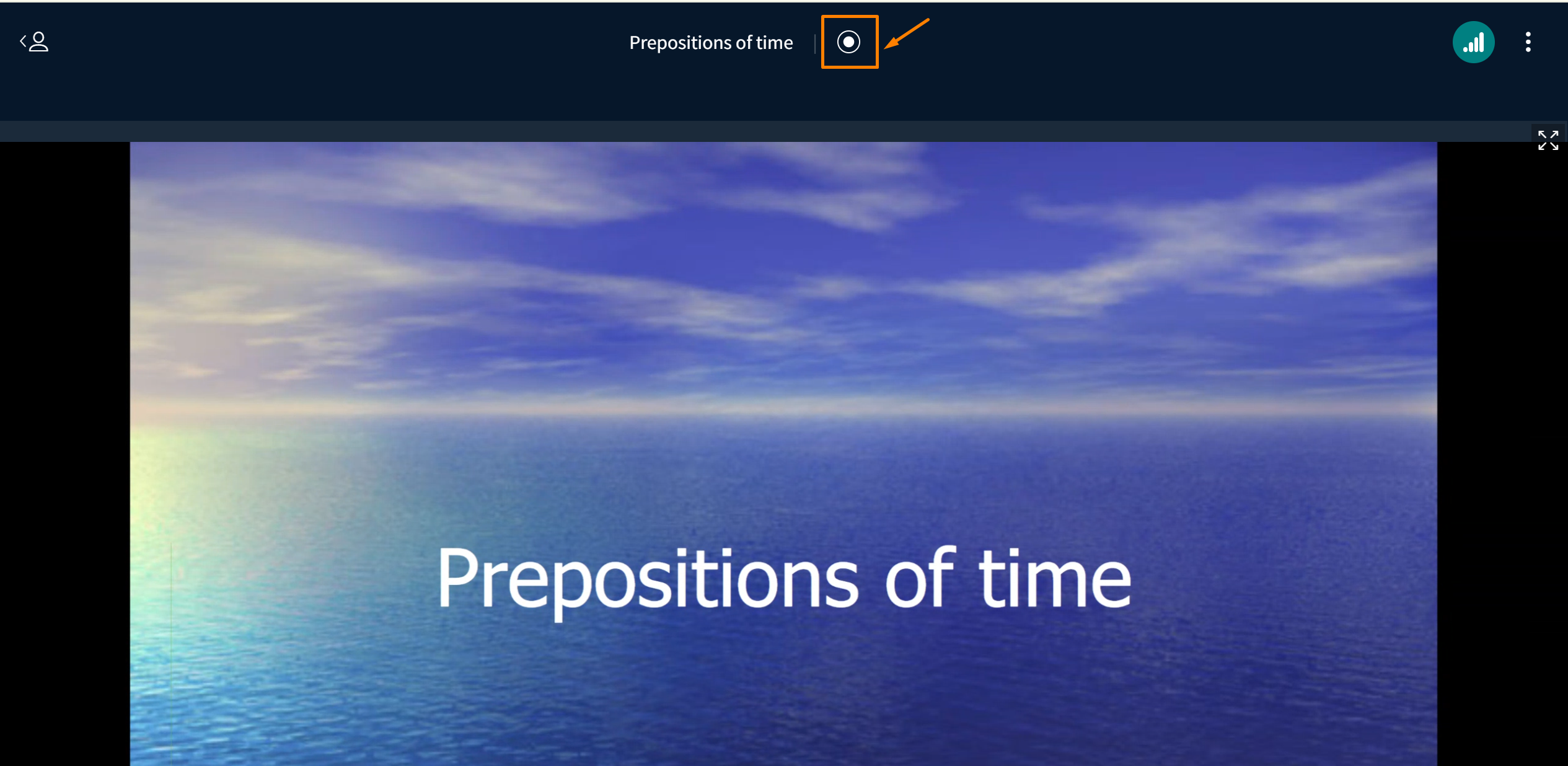
At the bottom of the screen, the following functions are available:
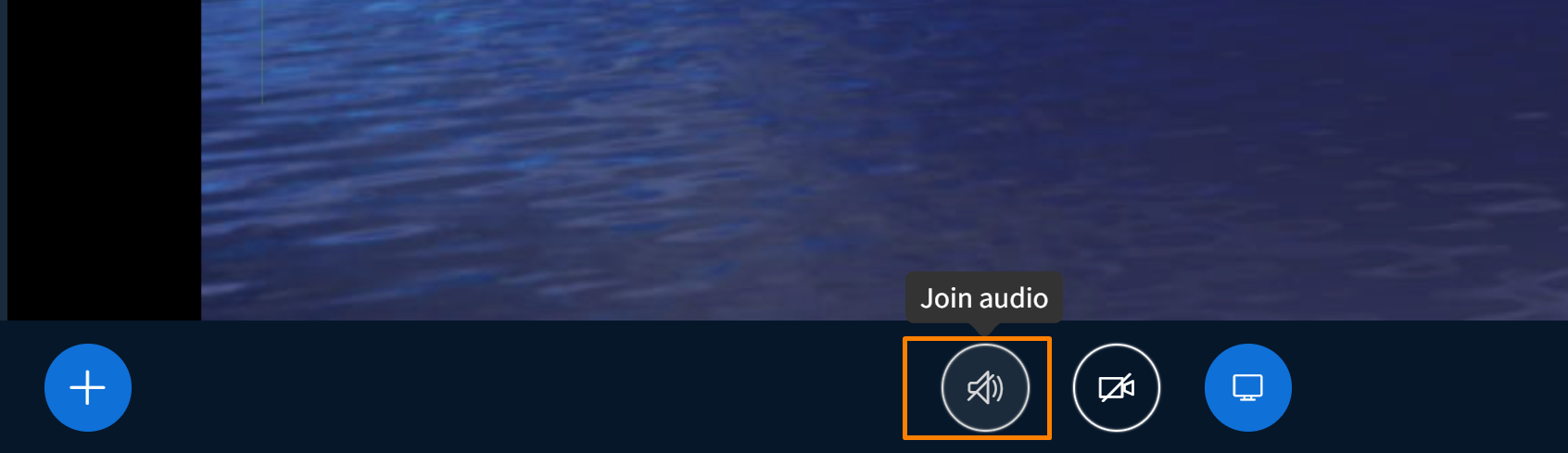
- Turn on the microphone and communicate with the participants of the conference.
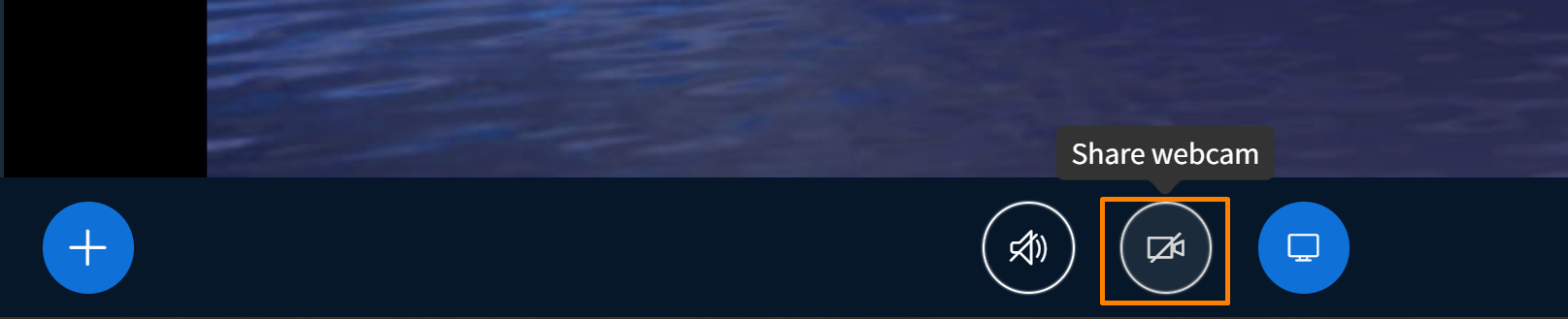
- Turn on the camera.
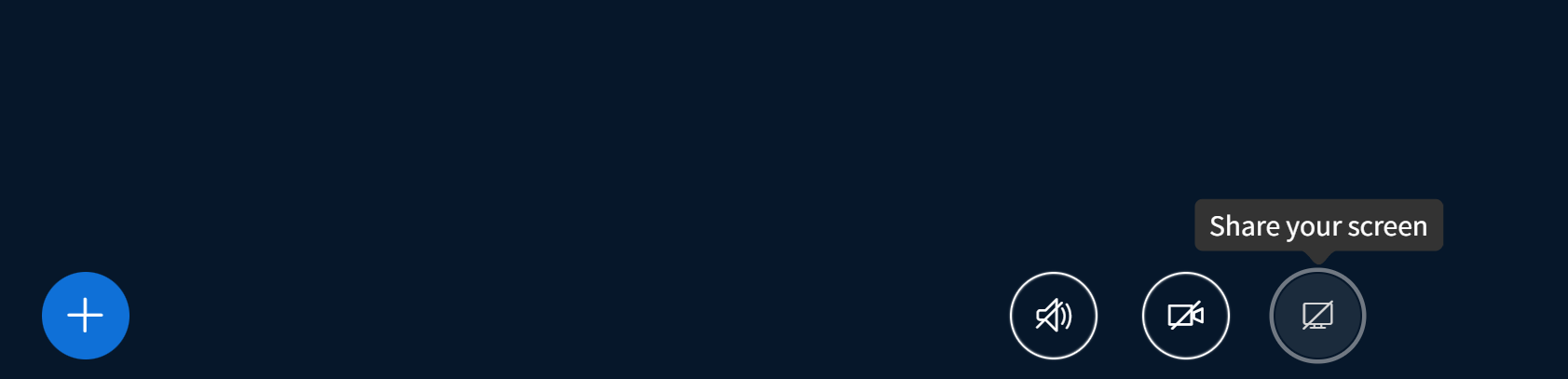
- Share your screen.
In case of adding a presentation,
the screen turns into an interactive whiteboard.
The organizer grants editing access to each participant by selecting the corresponding option next to their name.
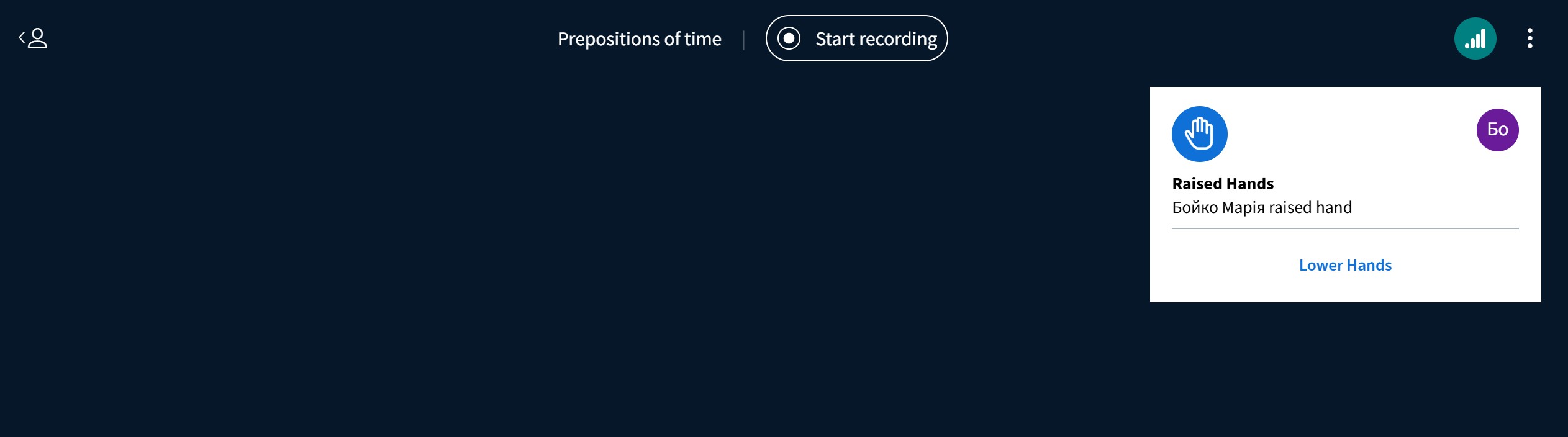
A participant or organizer can raise their hand by using the corresponding symbol in the bottom right corner of the screen. After that, the following notification appears.
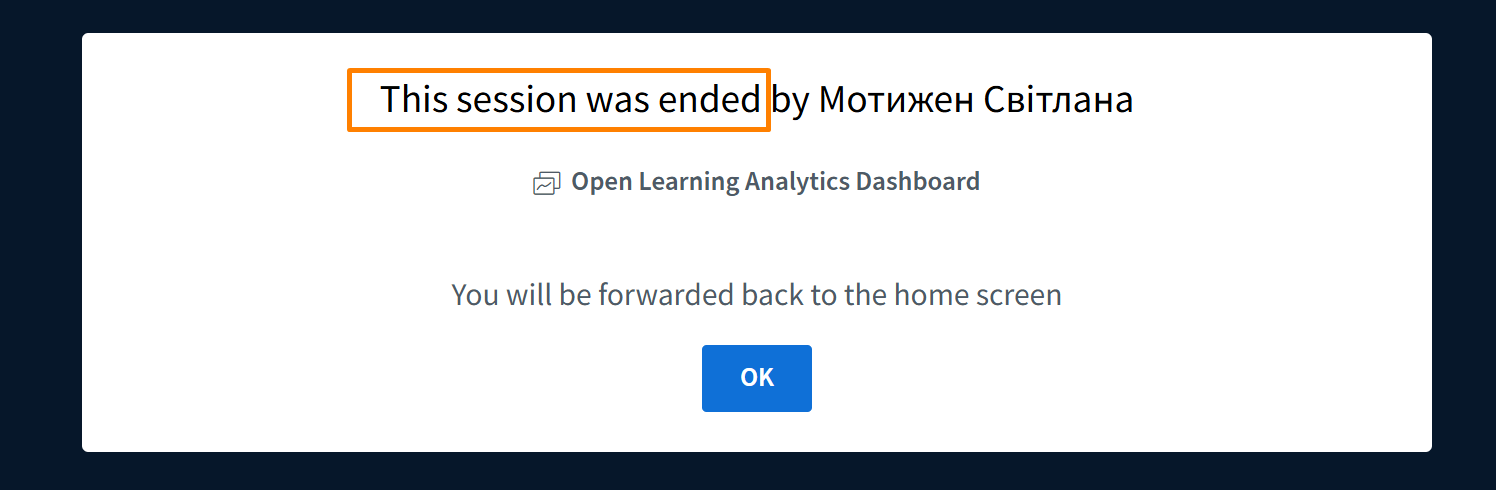
After the meeting ends, access to it is automatically terminated for all participants. The recording, if it was made, can now be found and viewed in the card of the corresponding lesson.