Disciplines
Who can create/edit
This category in the system interface is available only to users with the Administrator role.
Creating/adding a discipline
This category is linked to Groups, Lessons, and Curriculum, so it is crucial to create the discipline(s) during the preparatory stage of setting up the institution:
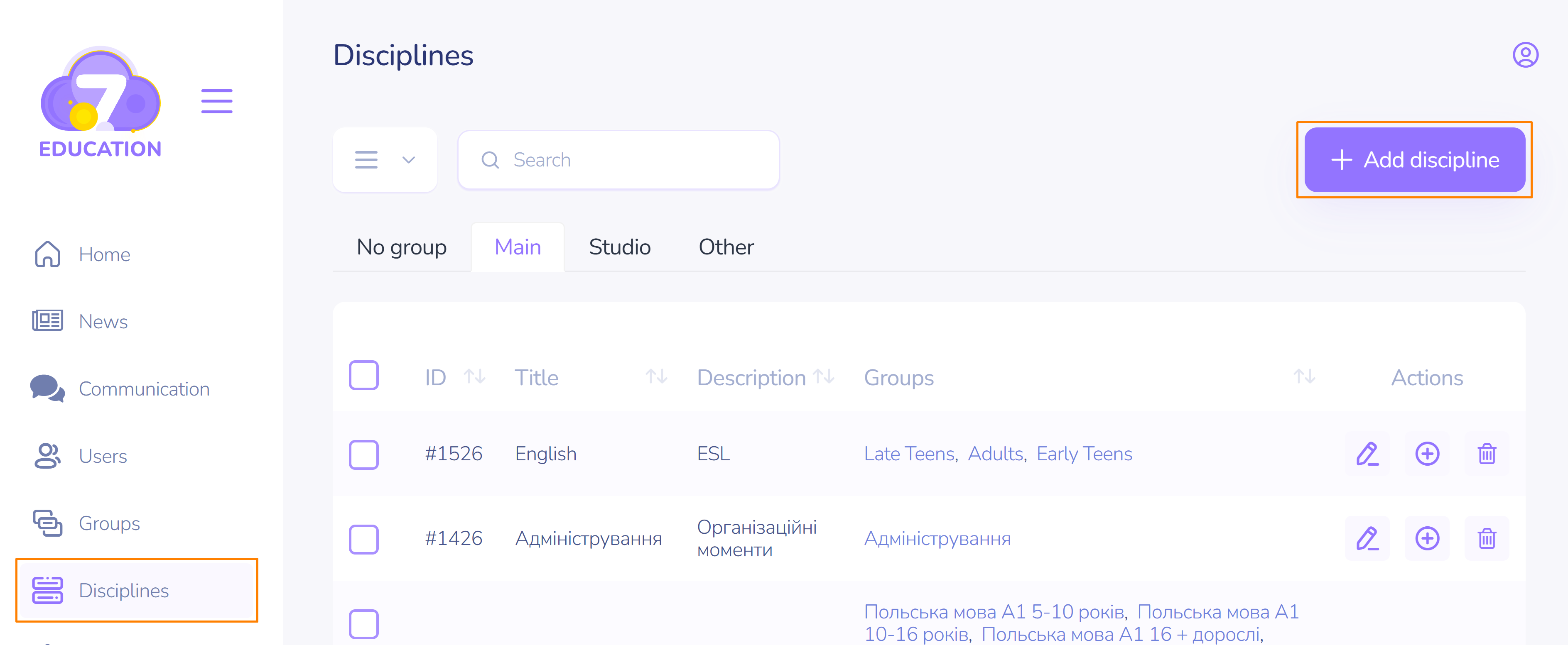
- On the left sidebar, click on "Disciplines."
- In the top right corner, select "Add Discipline."
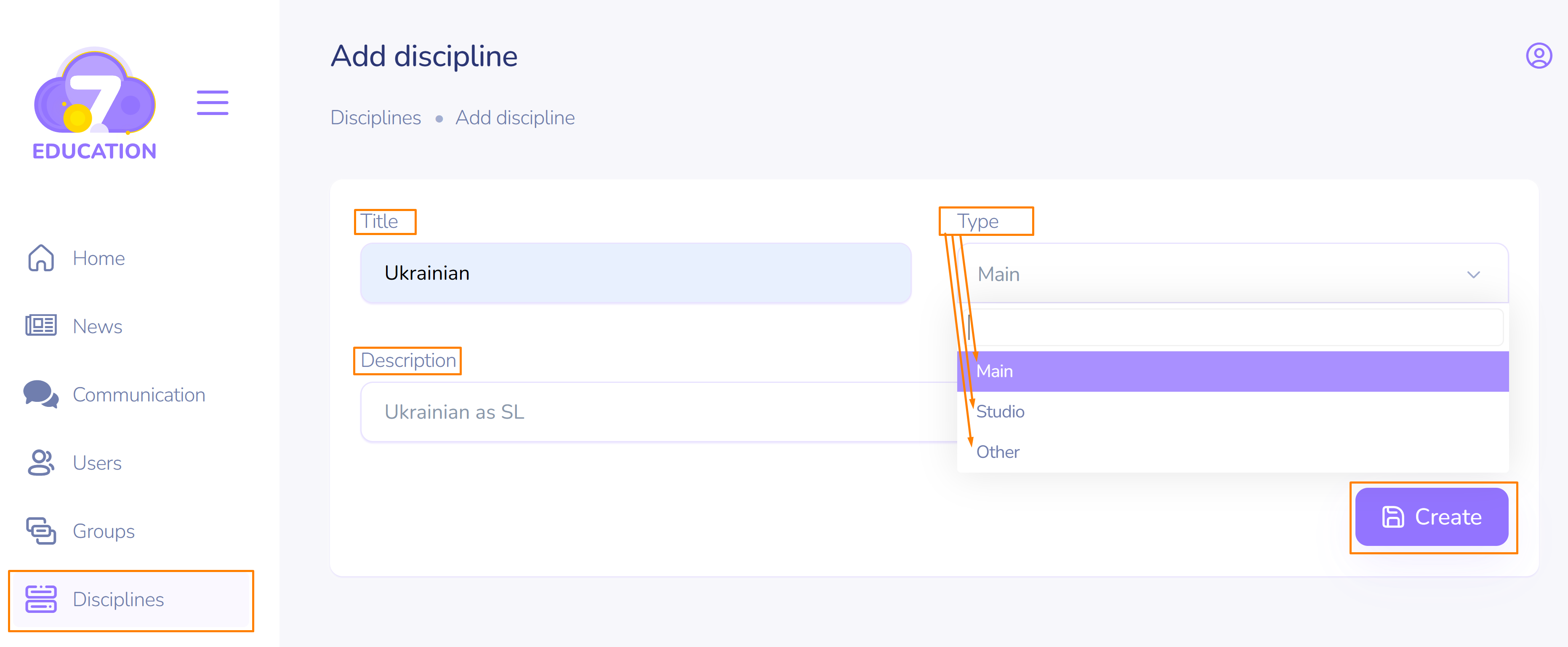
- Enter the name and description, select the type (this will affect the priority of adding disciplines to the schedule to avoid overlapping in time: first "Main," then "Study," etc.).
- Click "Create."
Group Enrollment
The newly created discipline appears in the top row of the list.
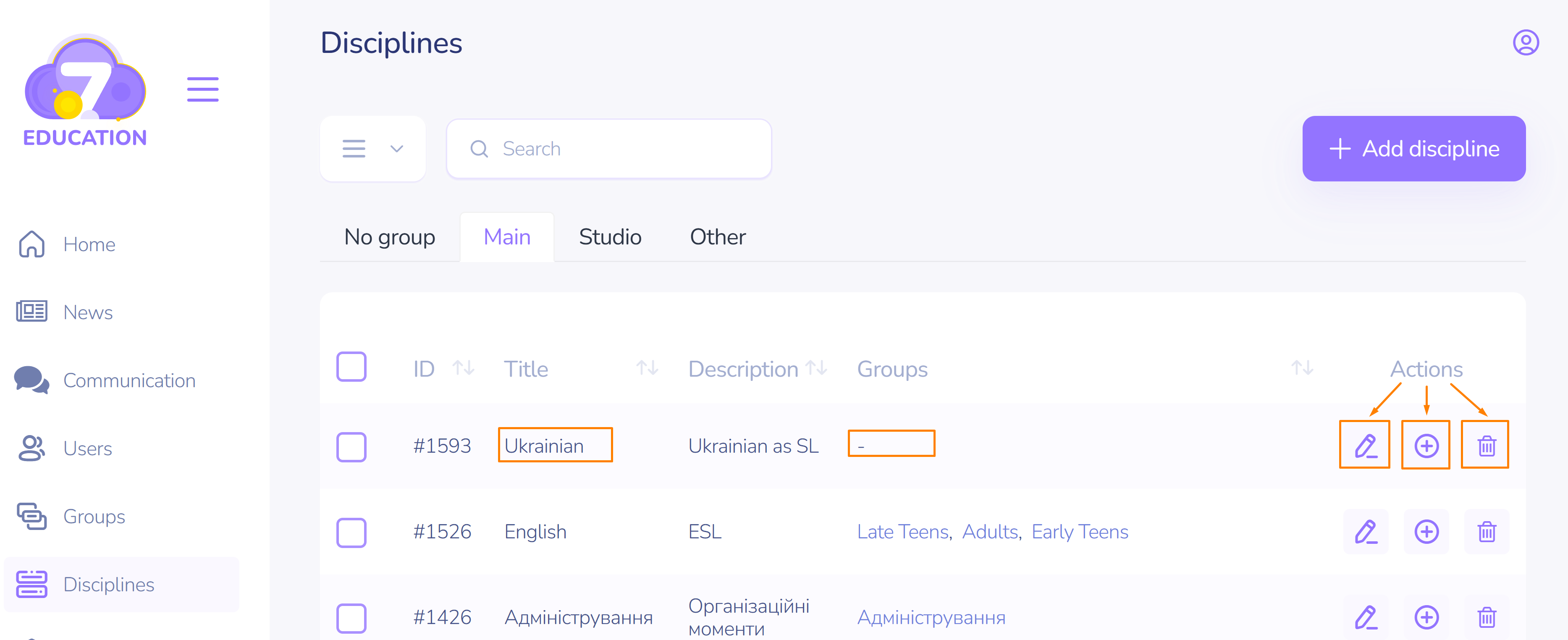
However, the setup is not complete, as each discipline should have user groups enrolled:
- In the row with the corresponding discipline, on the right under the "Actions" section, click on the "+" icon.
- Activate the switch in the row with the name of each group that will study this discipline. The enrollment is done automatically. (When returning to the previous page in the web browser, refresh it).
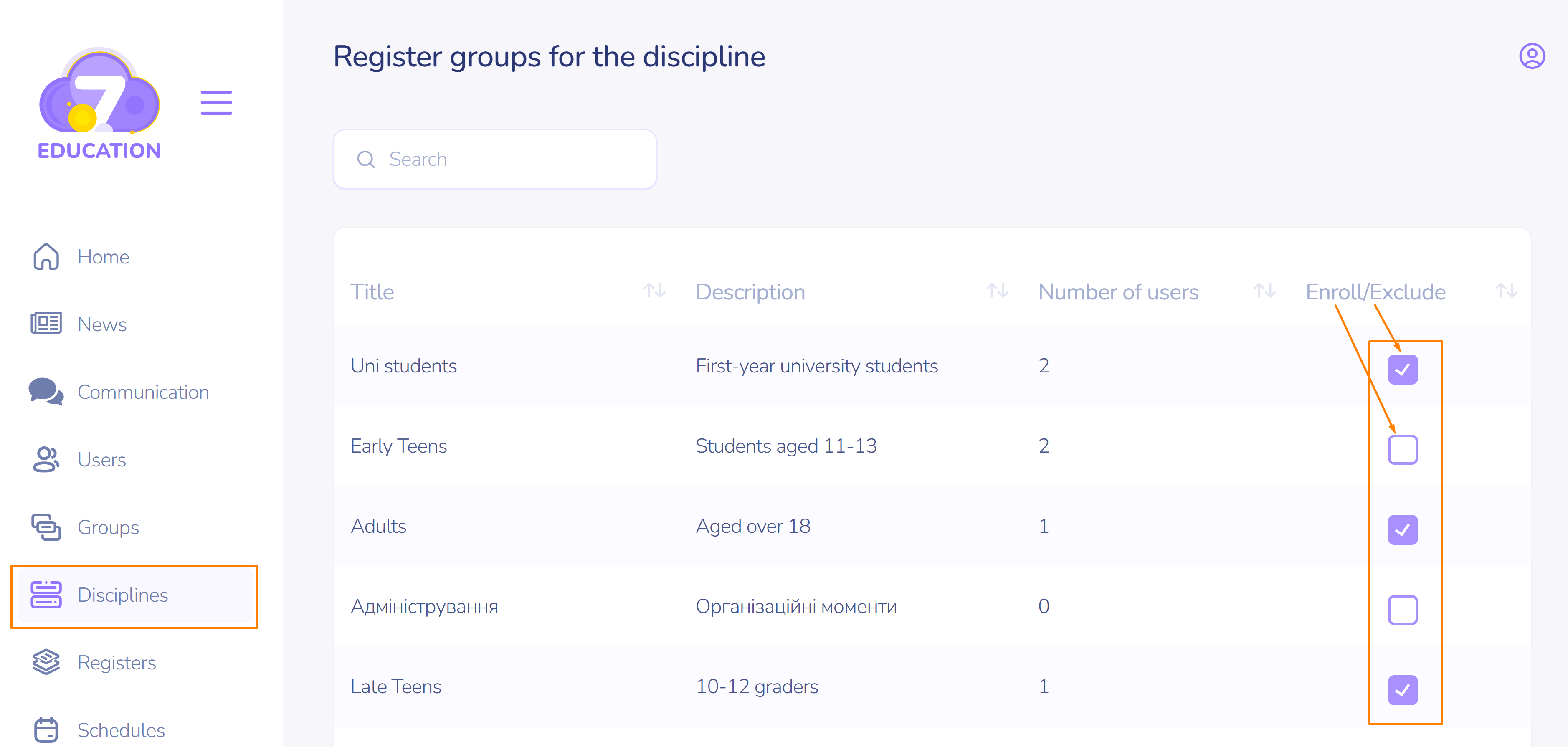
Important! Only groups can be enrolled/dropped, not individual users. A group can contain a minimum of 1 user. Therefore, you must first create groups and enroll users in them. Then, create the discipline and enroll the groups to study it.
Editing
If necessary, the discipline can be edited (change the name, description, type), groups of users can be enrolled/dropped, or it can be deleted using the corresponding option in the Actions section on the right in the row with the discipline name.
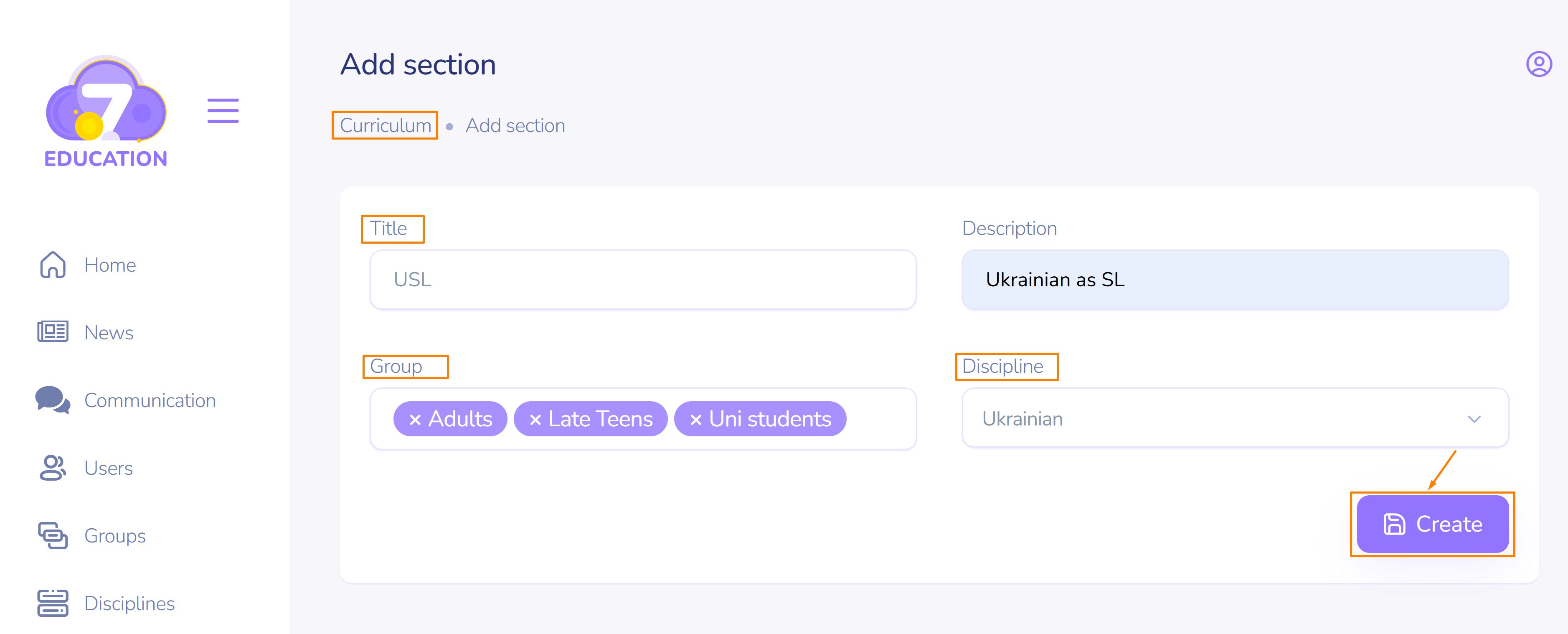
Also, the Discipline category is linked to the Curriculum, based on which the Course is formed.