Integration via codes from Quizlet, Learningapps and Wordwall
Integration of tasks by code from Quizlet, LearningApps, and Wordwall
When creating your interactive tasks or using existing ones from external resources or websites, it is worth considering code integration. Unlike a regular hyperlink, embedding code allows you to visualize the interactive exercise.
Quizlet
After creating a set of flashcards with words, expressions, terms, and other relevant content, copy the embed code and add it to the task in the 7SKY platform. To do this:
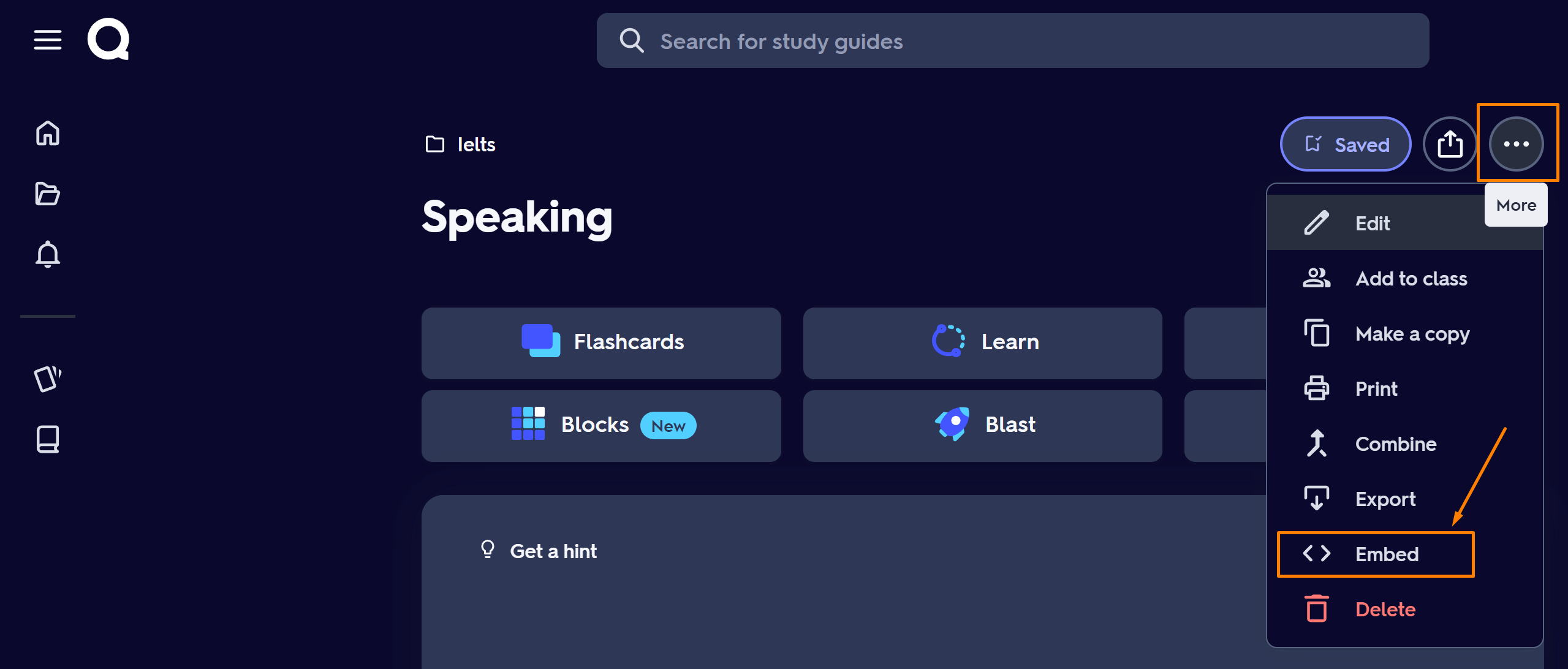
- Above the title of the card block, in the top right corner, click the button with three horizontal dots.
- From the options that appear, select <> Embed.
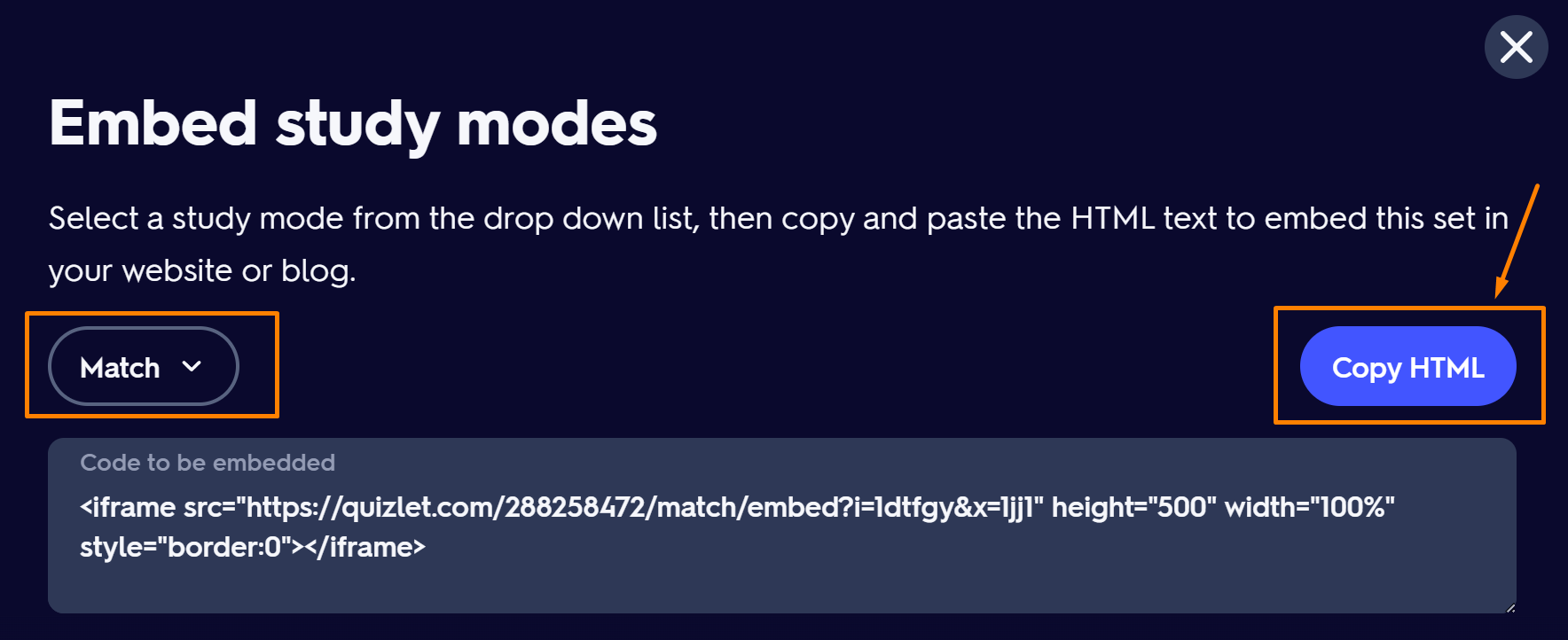
- Select a mode (match, learn, test, flashcards, or spell) from the dropdown menu on the left.
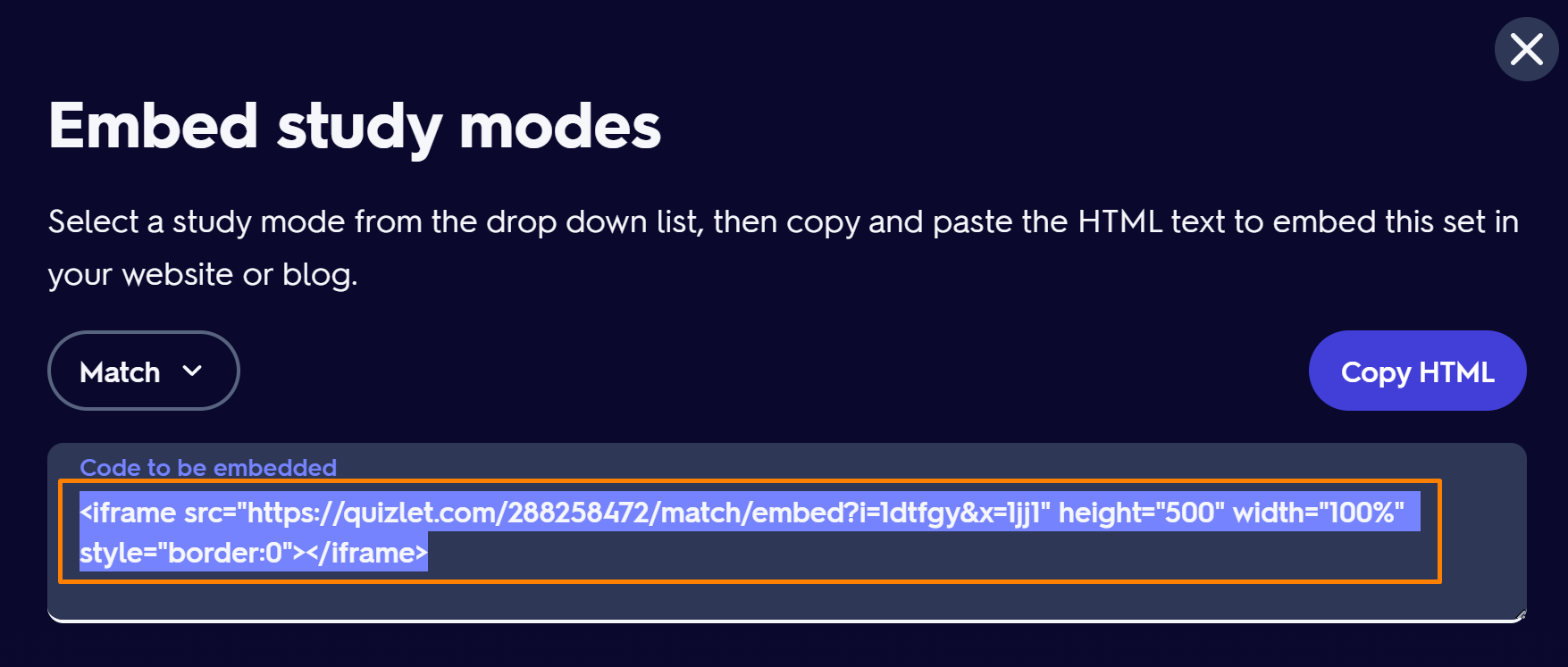
- Click Copy HTML code. The background color of the code should change to lavender.
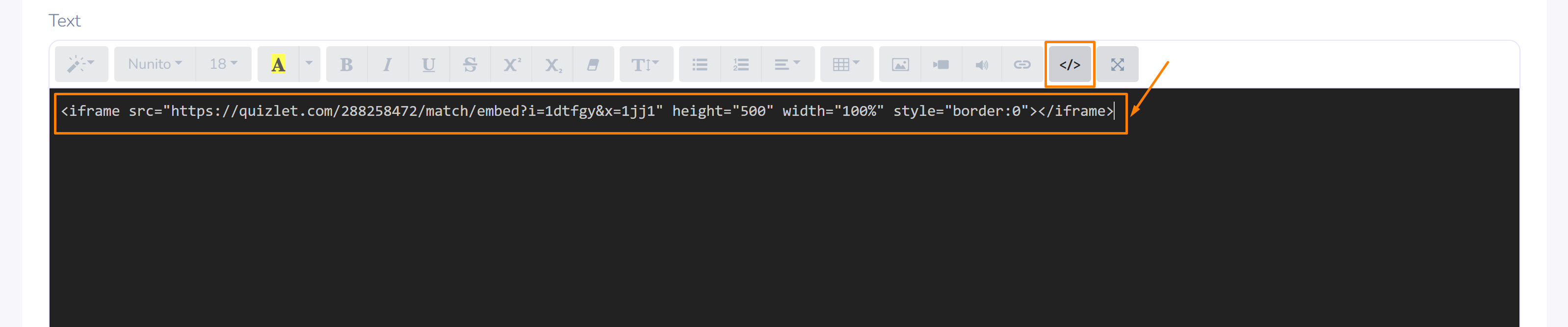
- Go to the page or lesson in the space and click </> Embed.
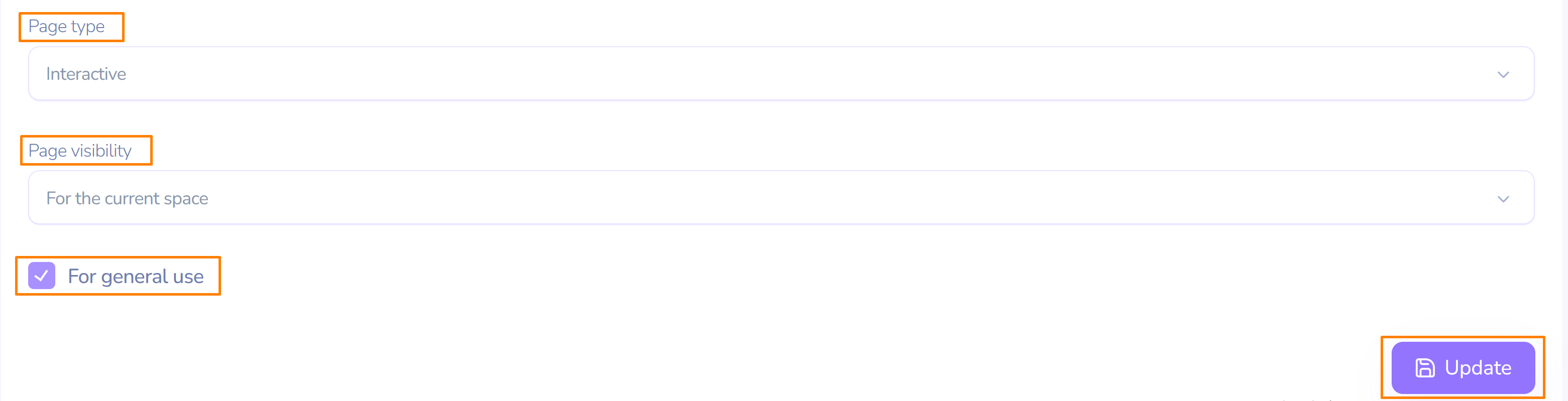
- Select the page type, set the visibility, and enable sharing mode if needed.
- Click Create/Update, depending on whether you create or update the page or lesson.
Viewing the Embedded Task
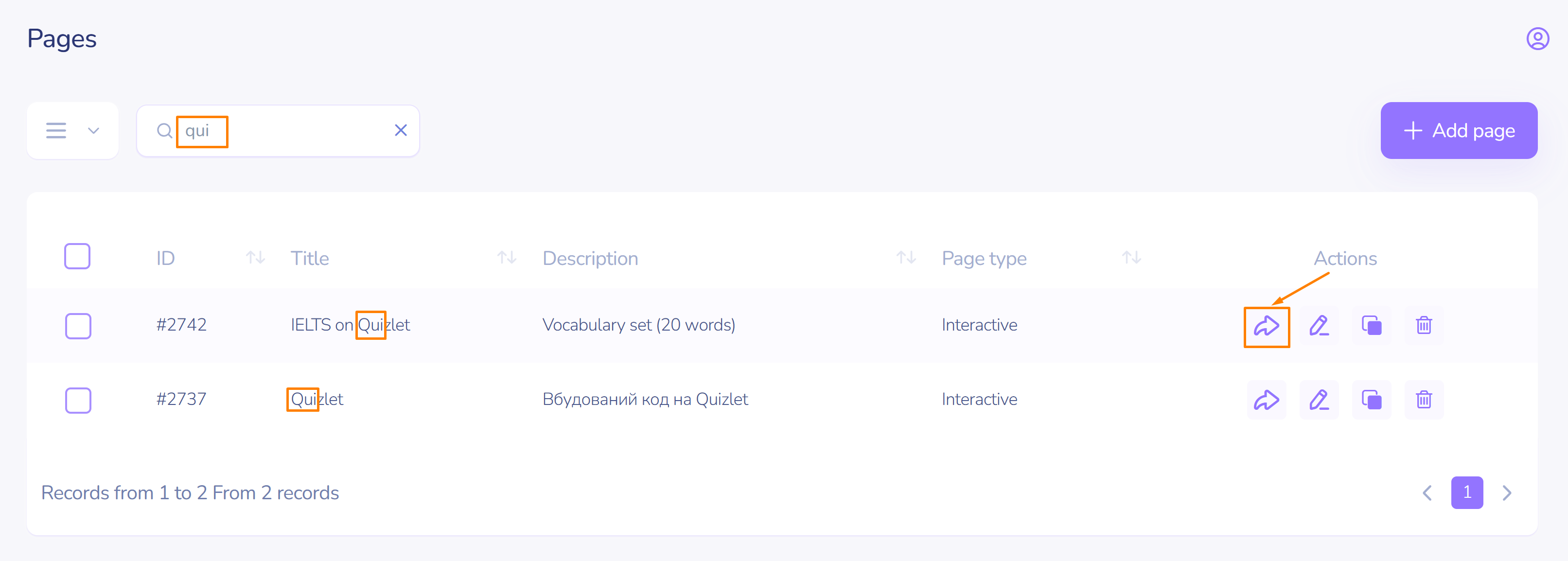
- The created page will appear at the top of the list in the left sidebar of the main menu, under the Pages tab.
- If needed, you can quickly find it by entering words from the title.
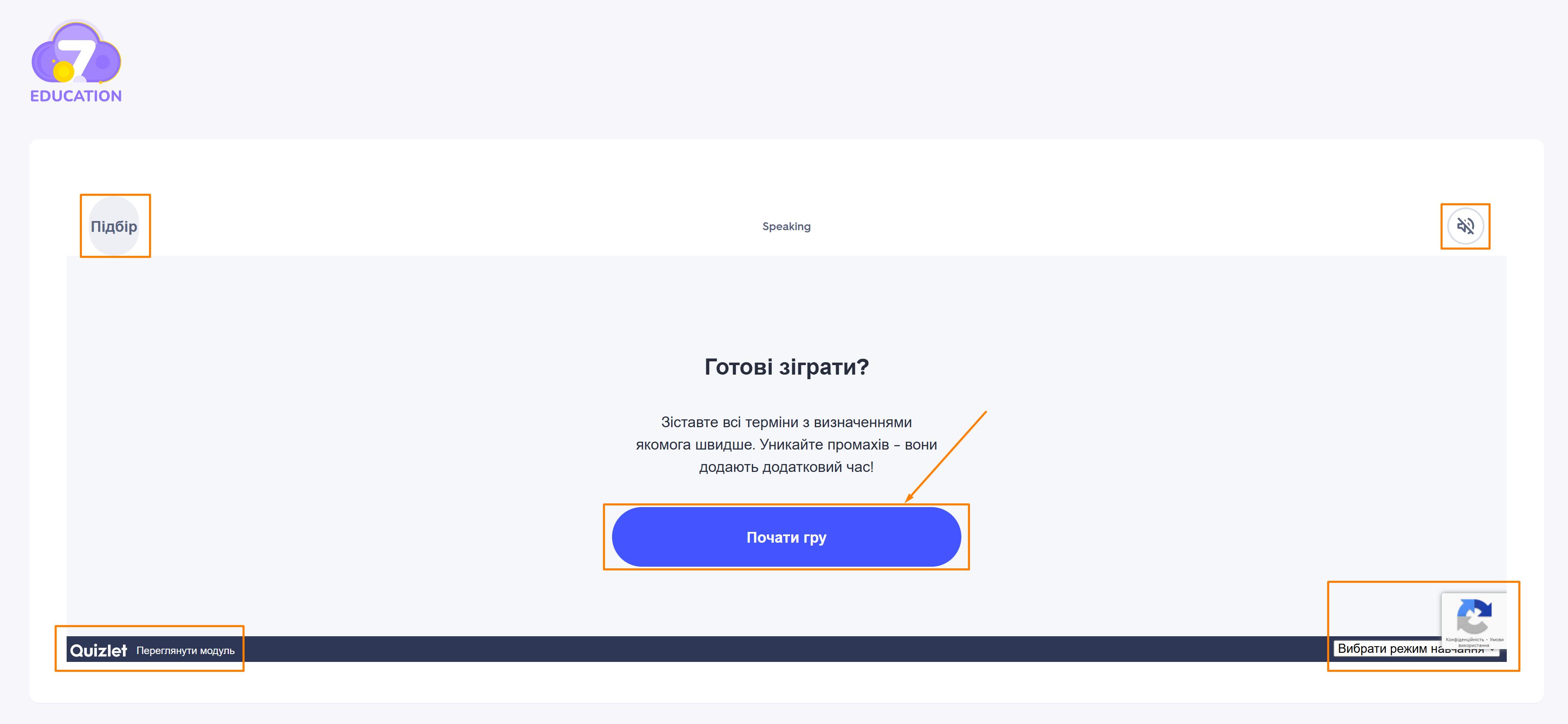
- In the Actions section, click the arrow to open the exercise in a new window.
- Here you can start the game. You also have the option to view the module, enable audio, and choose a learning mode.
LearningApps
Similarly, you can embed codes for exercises from the LearningApps website:
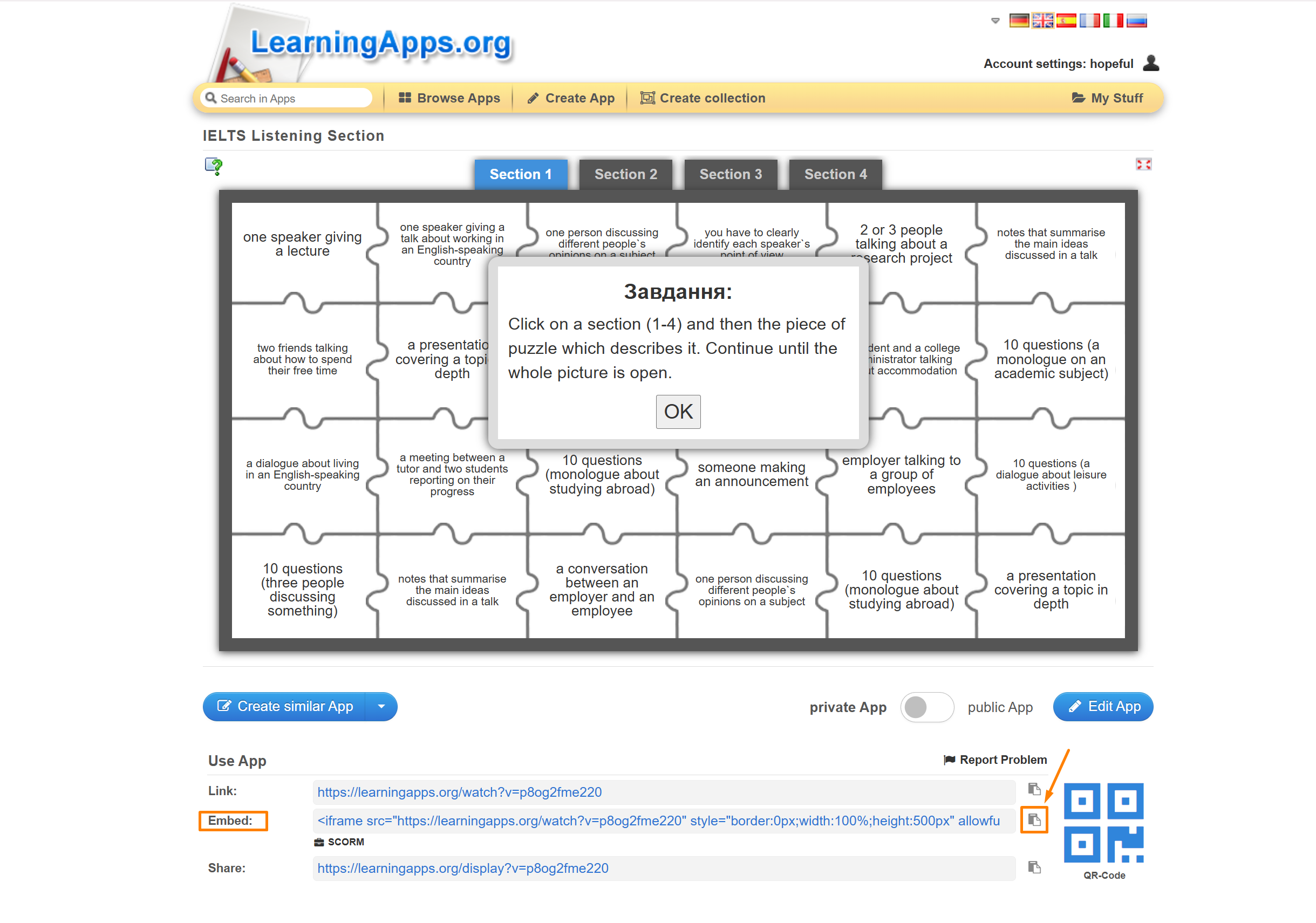
- Copy the code.
- Go to the page or lesson in the 7SKY space and paste the code.
- Adjust the other elements as demonstrated above, then click Create.
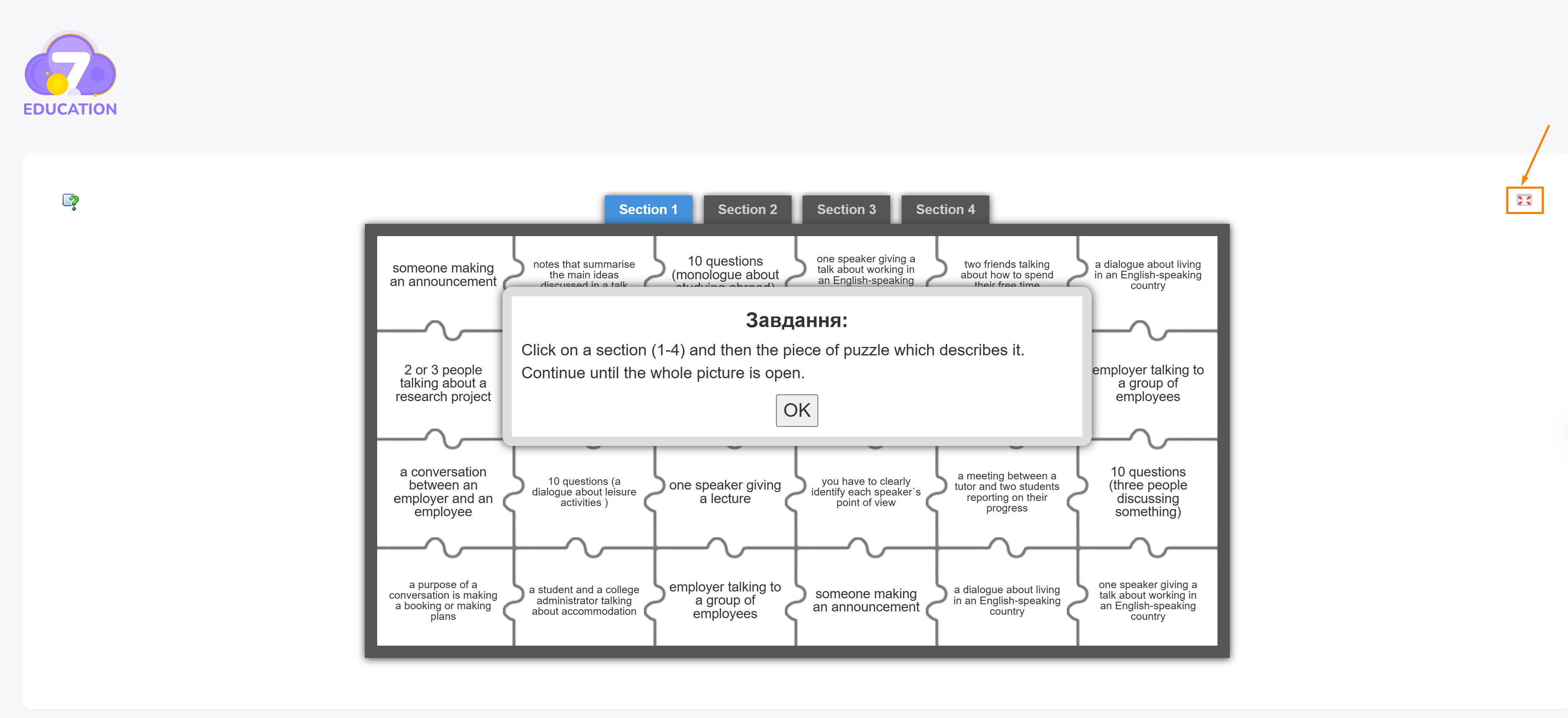
- View the added task by opening the newly created page and clicking the arrow in the Actions section (on the same line as the page title, to the right). If you wish, switch to full-screen mode by clicking the corresponding icon in the top right corner.
Wordwall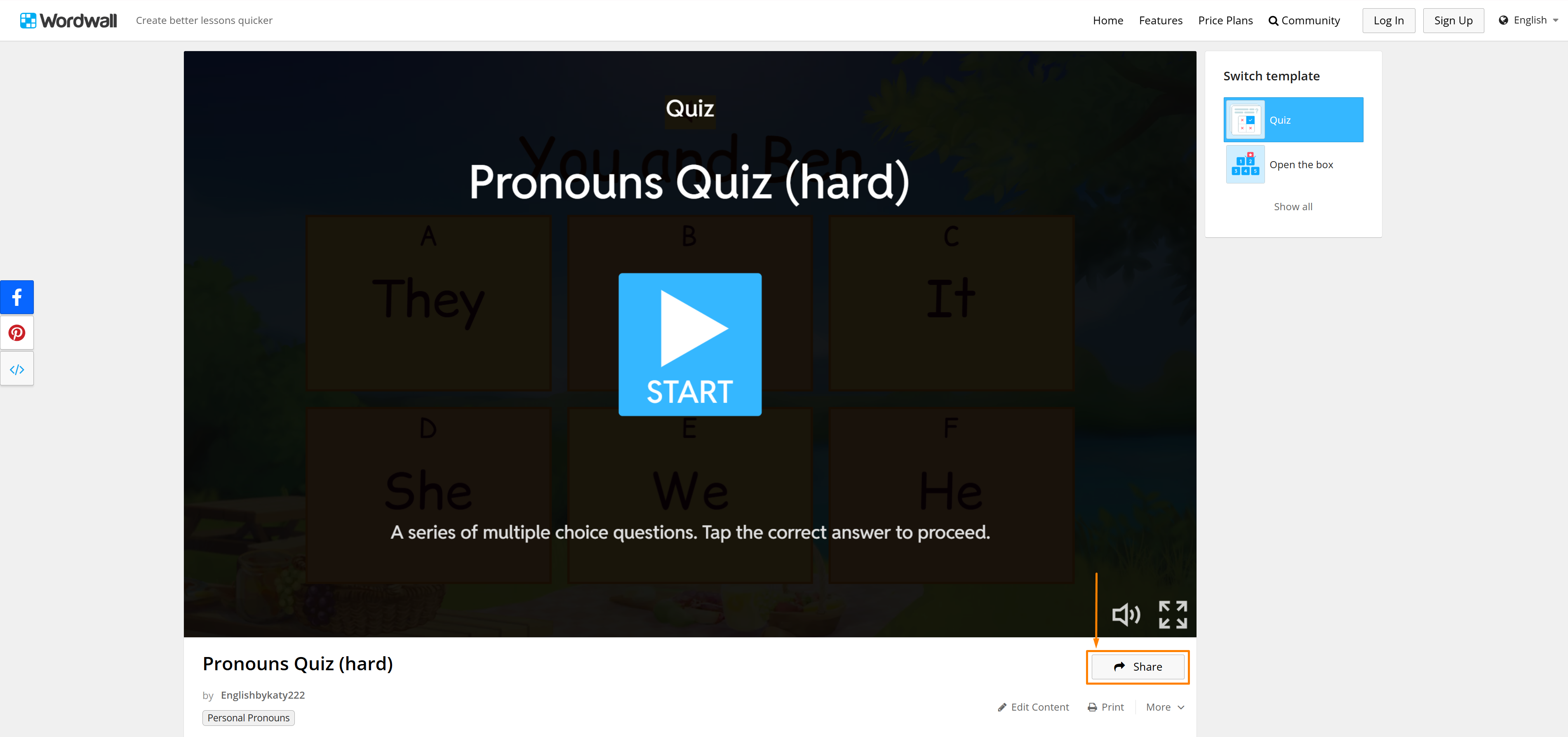
- In the bottom right corner, click Share.
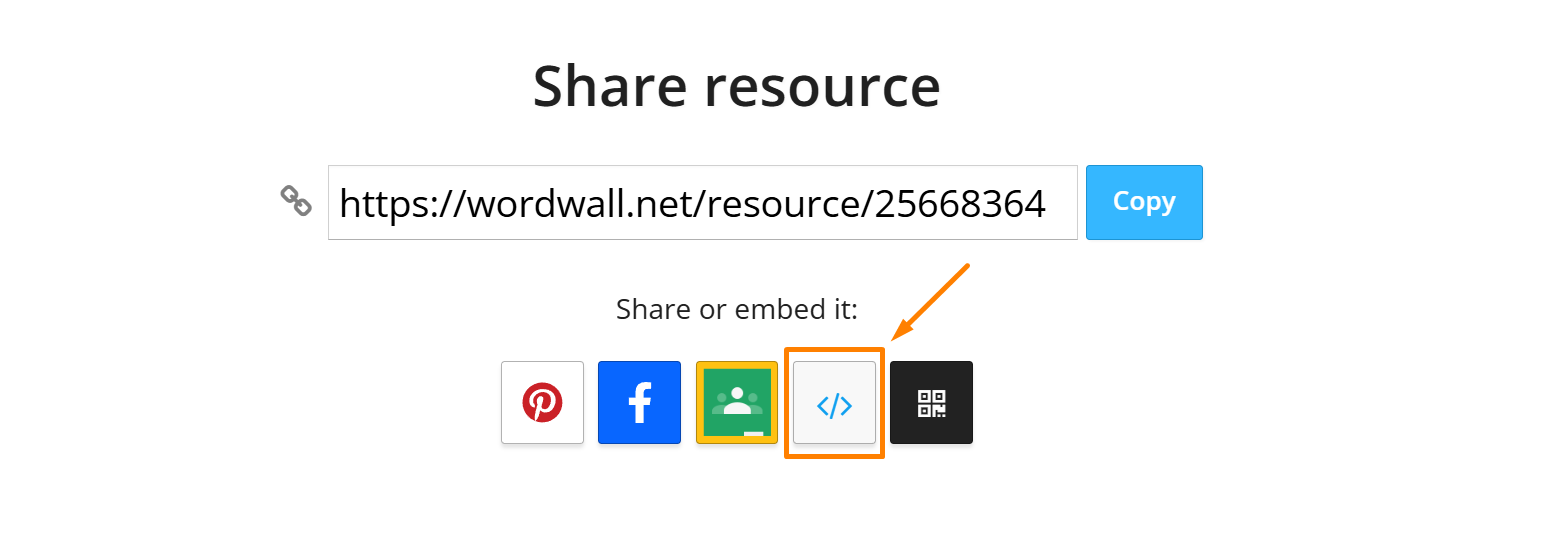
- In the new window, select the </> icon (angle brackets).
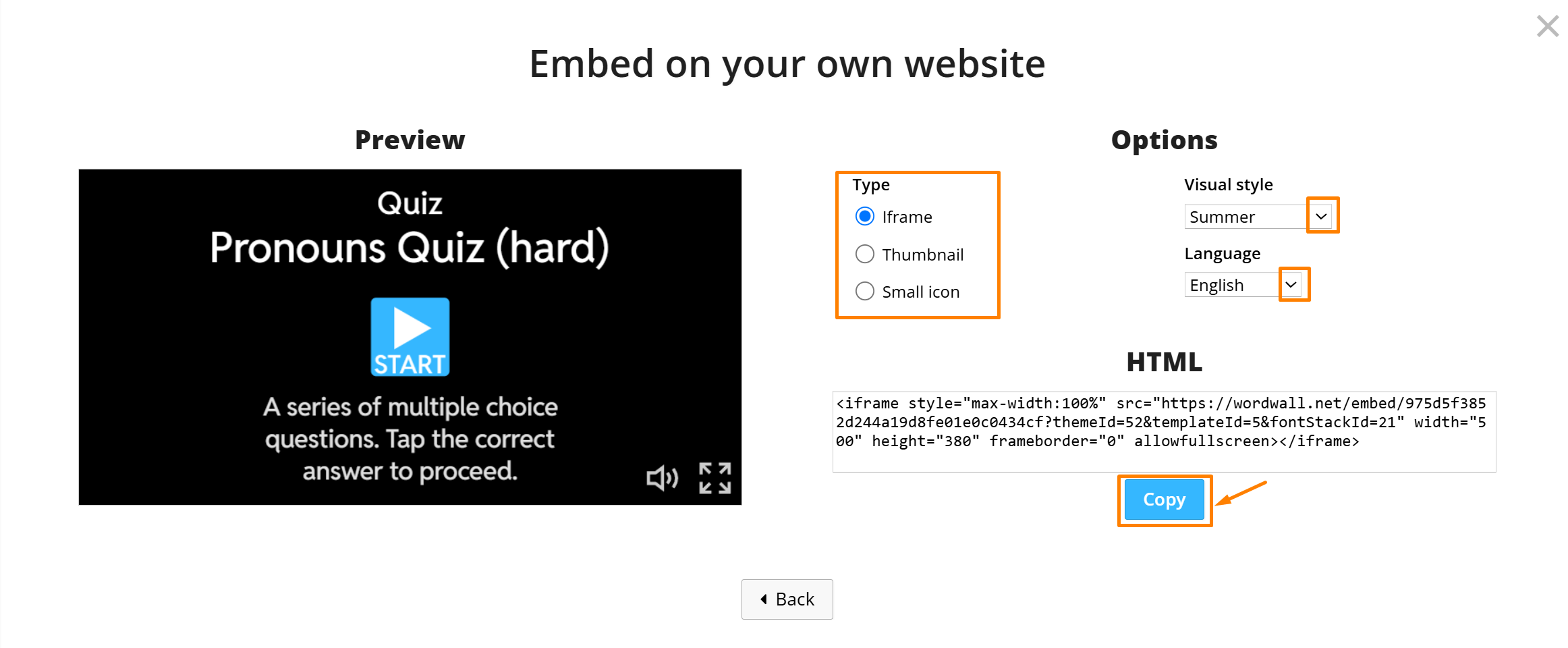
- In the next window, adjust the necessary settings (type, style, and language), then click Copy.
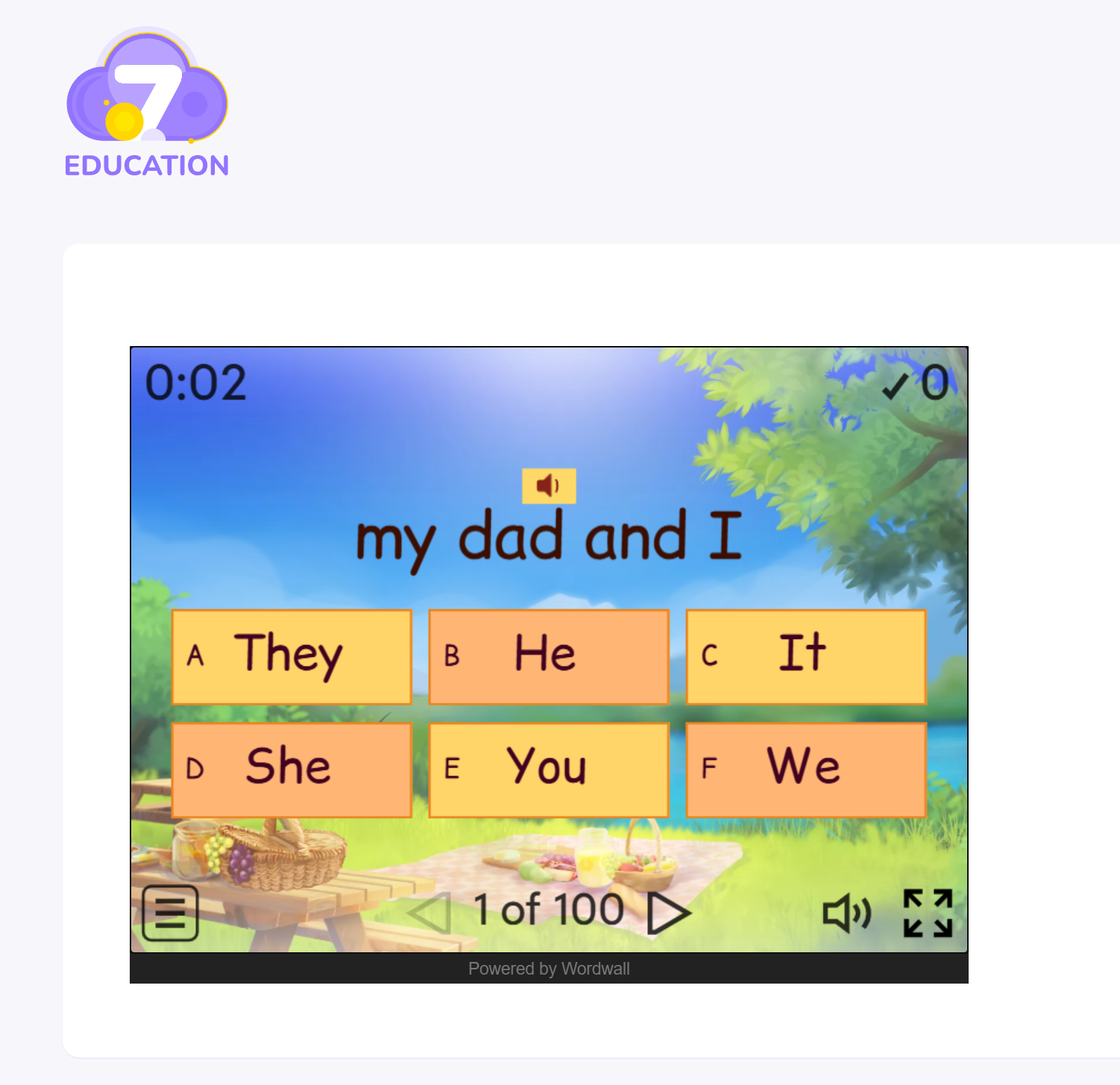
- View the added task by opening the newly created page and clicking the arrow in the Actions section (on the same line as the page title, to the right).
If desired, switch to full-screen mode by clicking the corresponding icon in the top right corner.