Integration via a code from Canva
How to integrate a presentation or set of slides created via Canva with the help of a code
After creating the presentation,
Let’s take a look at how to do this:
If you are not editing the Canva service object but using a ready-made one, click the three dots button on the right, select Share, and the link will be copied automatically. This way, you simply insert a hyperlink.
To integrate via code:

- Open the editing mode by clicking the Customize template button.
- Make all necessary changes. Click Share in the top right corner and select See all.
- From the available options, select Embed.
- Important! If the required option doesn’t appear in the pop-up window, click See all.
- To enable the option to embed your design, click Embed.
- Choose the desired option.
- Open the lesson or page where you want to insert the code.
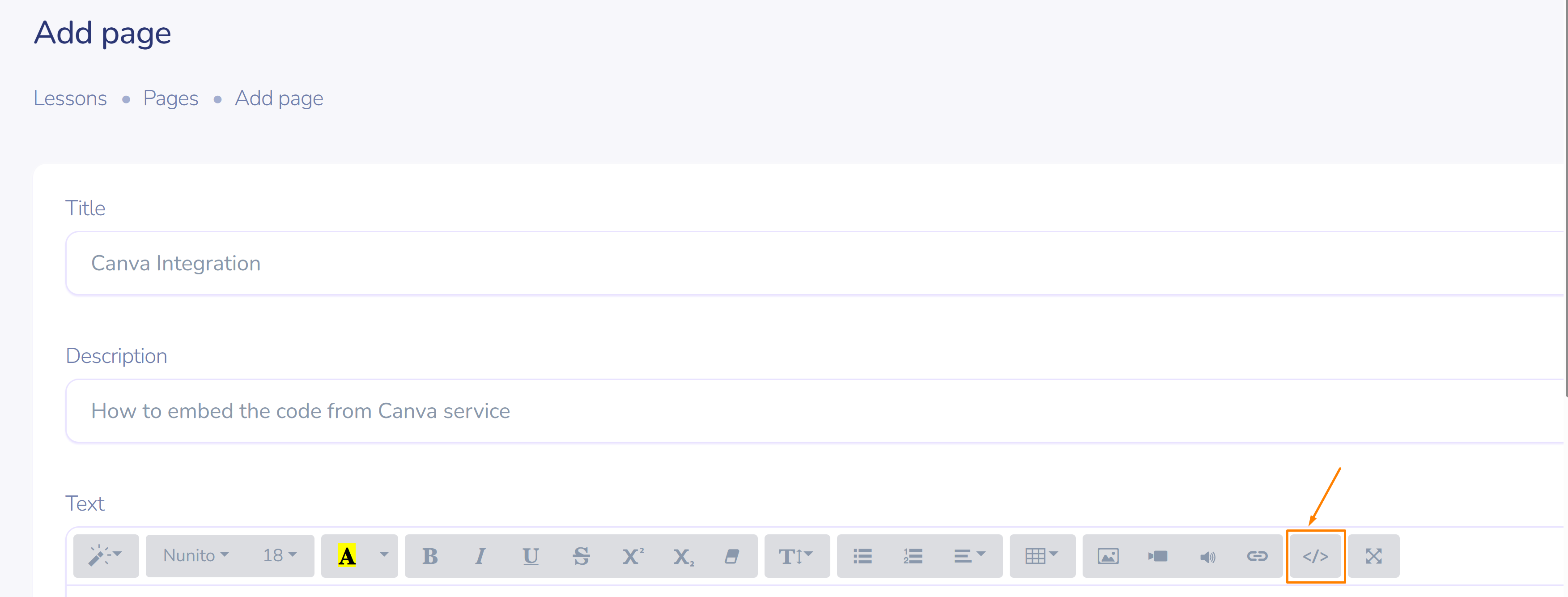
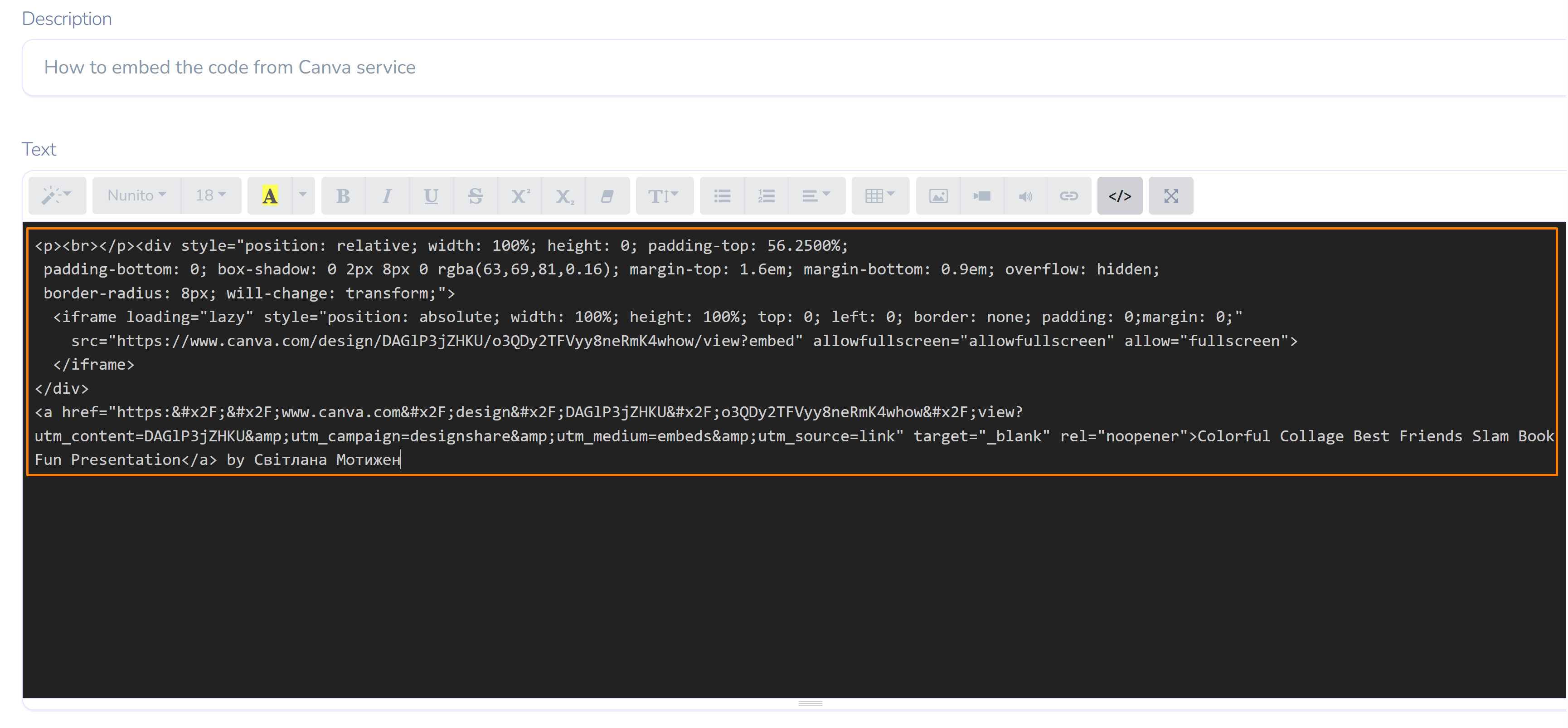
- Click on the symbol with angle brackets.
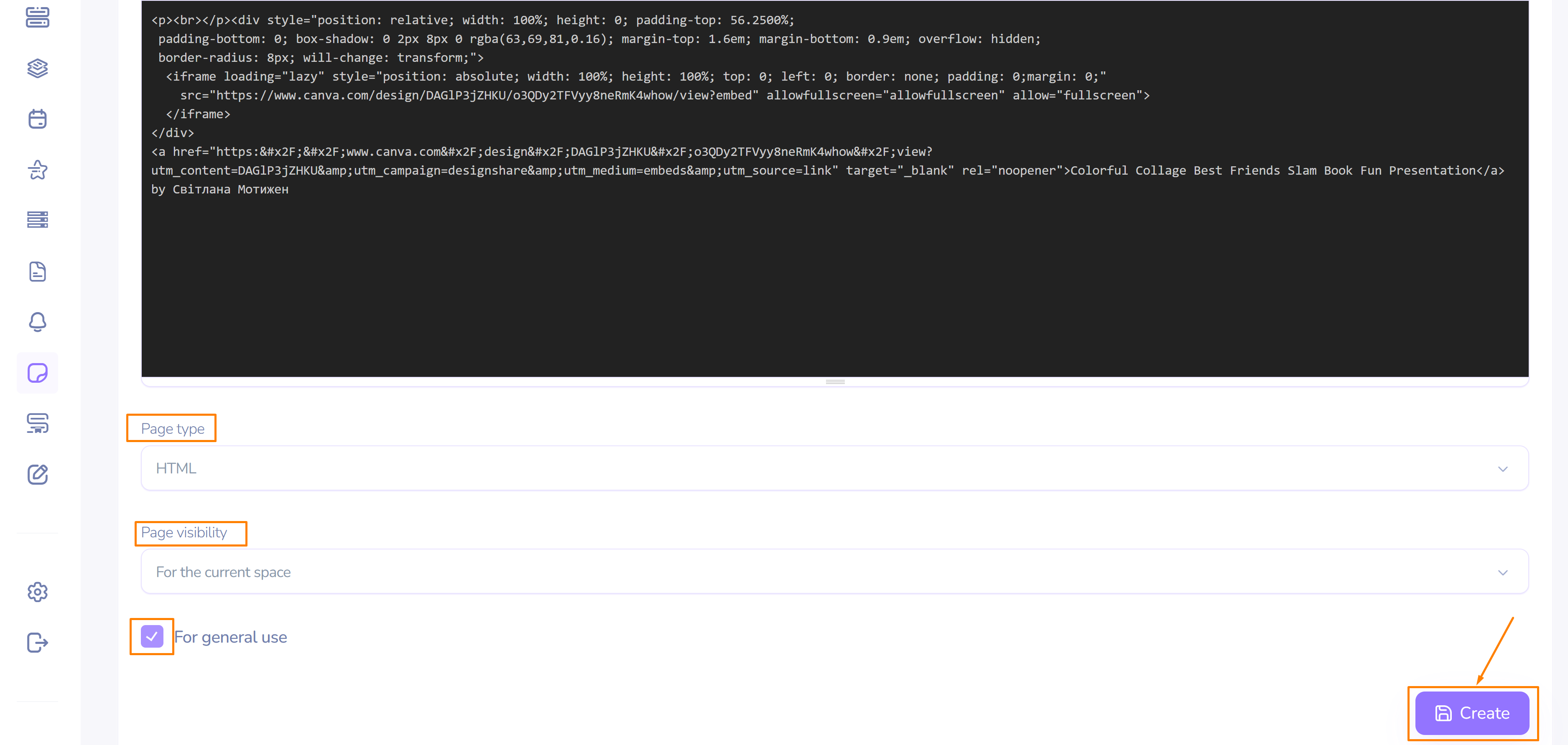
- If necessary, make further adjustments to the lesson/page and click Create.
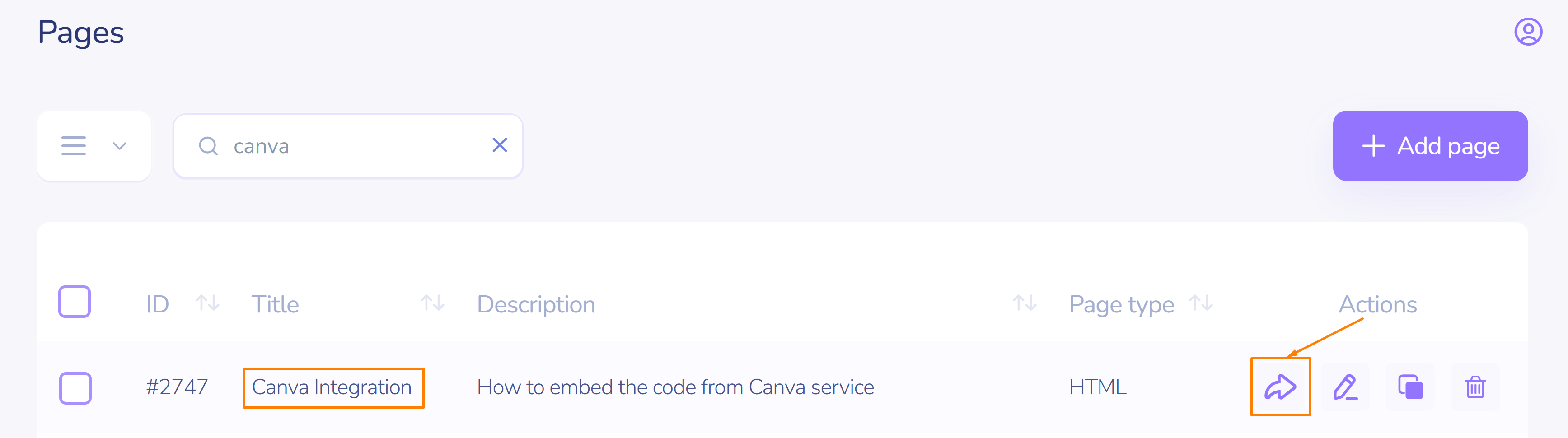
- To view the embedded via code object, click the View button on the right in the actions section of the page title row.
- The new window will contain the presentation, ready for viewing in a convenient format.